
BitBrowser Complete Setup Guide: Integrate RainProxy with BitBrowser
Harness the power of Rainproxy x BitBrowser and get all the information you're looking for to get setup!
First time using Rainproxy? Use code AUG15 for 15% OFF on your first order
Dolphin Anty is an antidetect browser, meaning it changes your entire browser fingerprint rather than simply masking your IP address, user agent, or other parameters websites use to identify you.
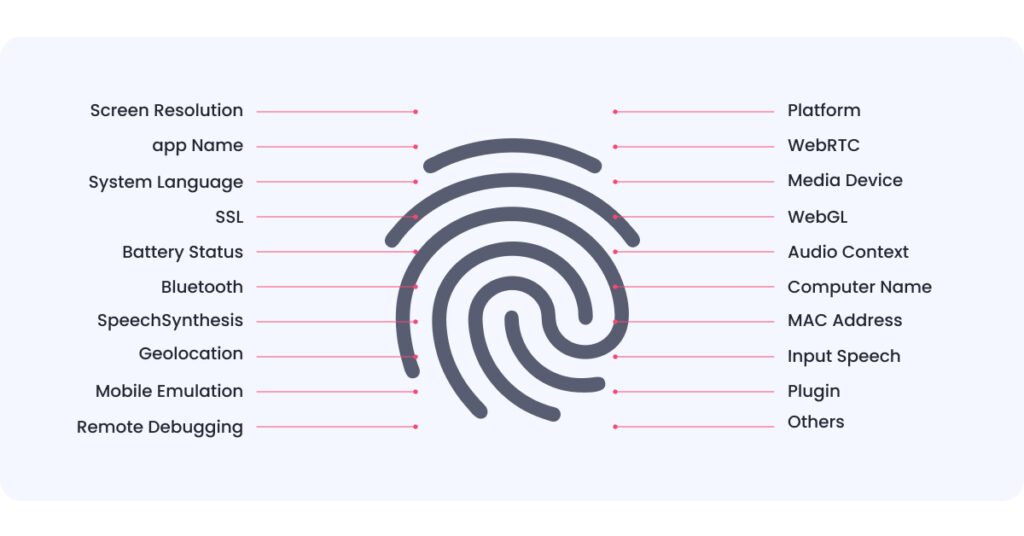
By changing your browser fingerprint, an antidetect browser creates new digital identities for you, and it can generate as many as you need. This makes Dolphin Anty suitable for:
Affiliate marketers — to create multiple advertising accounts while reducing the risk of account bans.
Marketplace sellers — to manage multiple stores and scale product sales.
Crypto traders — to create multiple accounts for scaling operations or to work with the most suitable GEOs.
SEO and SMM specialists — to analyse search results, advertisements, and recommendation feeds from different devices and locations.
The foundation of any antidetect browser is browser profiles (also referred to simply as profiles), each of which presents a predefined browser fingerprint to websites.
An antidetect browser works as follows:
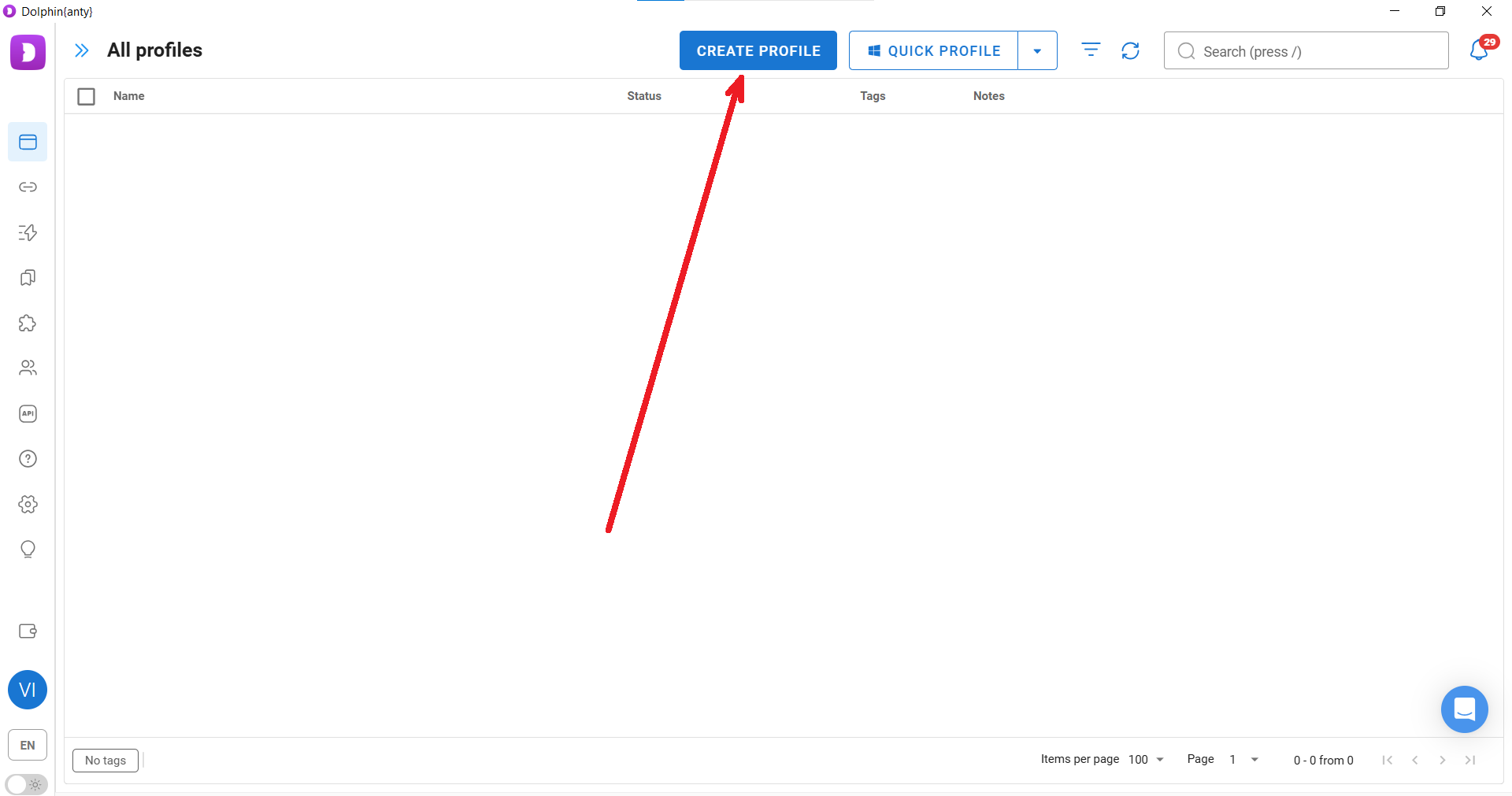
You create a browser profile. During profile creation, you choose an operating system and configure a proxy.
The system automatically selects a matching user agent and the main browser fingerprint parameters.
The selected proxy is also used to automatically align language settings, system time, and the device's reported physical location.
The chosen operating system determines the processor, graphics card, and several other hardware-related parameters.
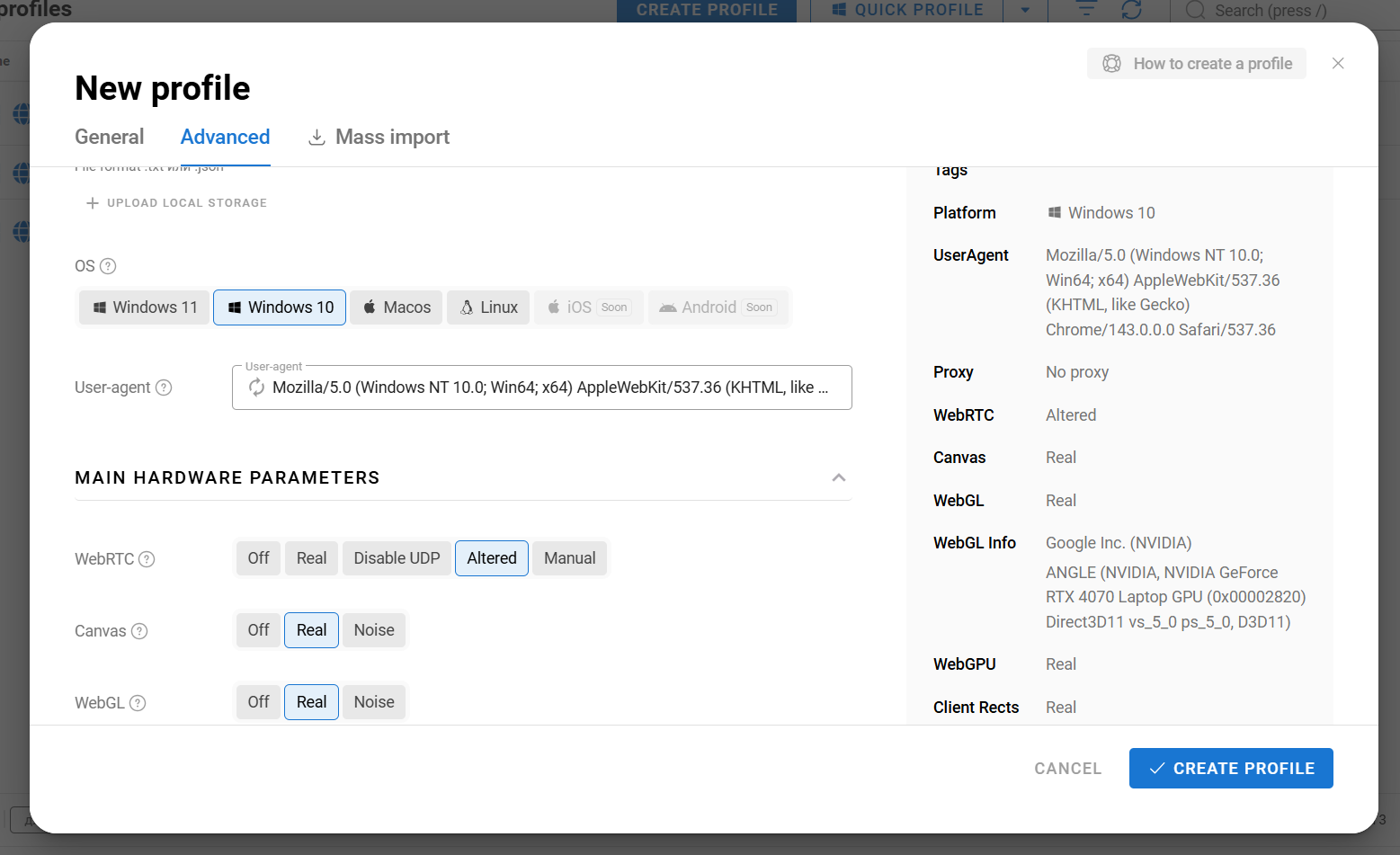
Important! Do not manually change the user agent or other browser fingerprint settings unless you fully understand how they work. Dolphin Anty automatically matches fingerprint parameters to your selected operating system and proxy.
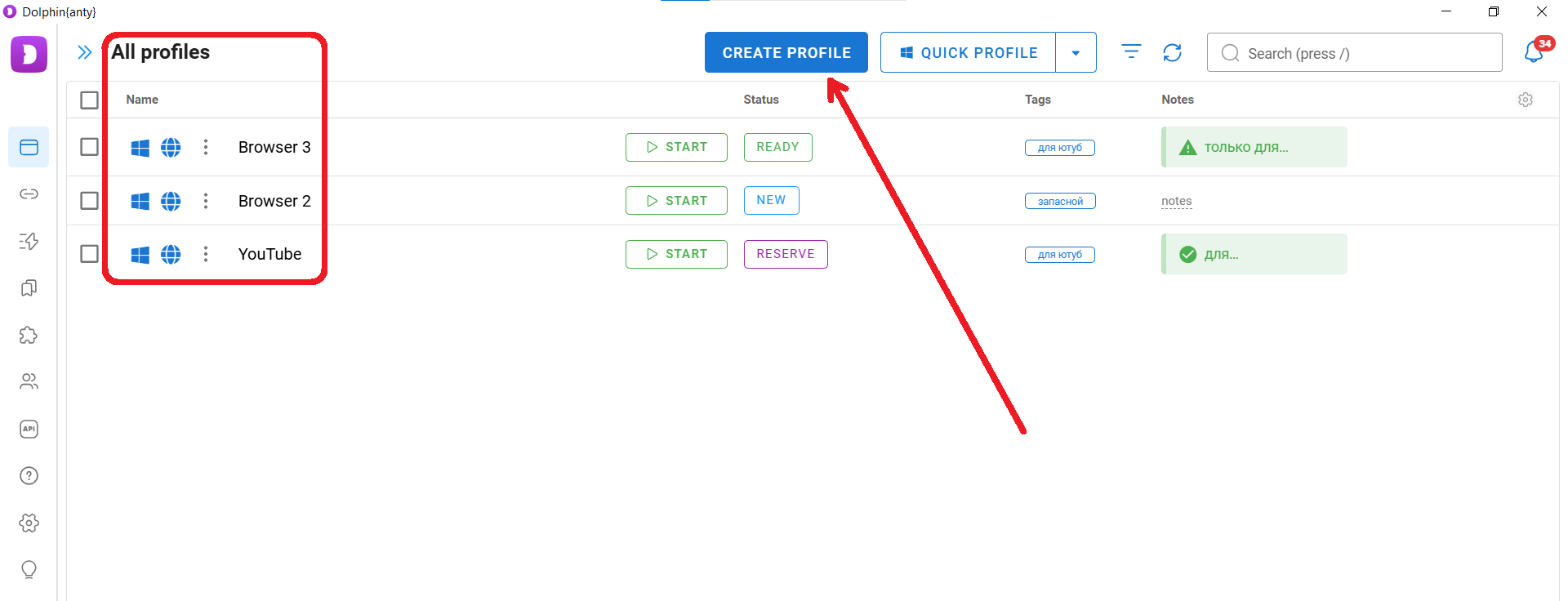
You can create as many browser profiles as you need, which means you can also create virtually unlimited digital identities. However, an antidetect browser does not hide your IP address, so profiles still require proxies to function properly.
Before adding proxies to Dolphin Anty, you first need to generate them in your RainProxy dashboard. Sign in or create an account, then open the Generator section.
Before generating proxies, choose the proxy type based on your tasks:
Shared — for bypassing regional restrictions.
Datacenter and IPv6 — for analysing search results and recommendation feeds from different locations and devices.
Residential and Mobile — for running advertising campaigns and managing multiple accounts on platforms with strict anti-fraud systems.
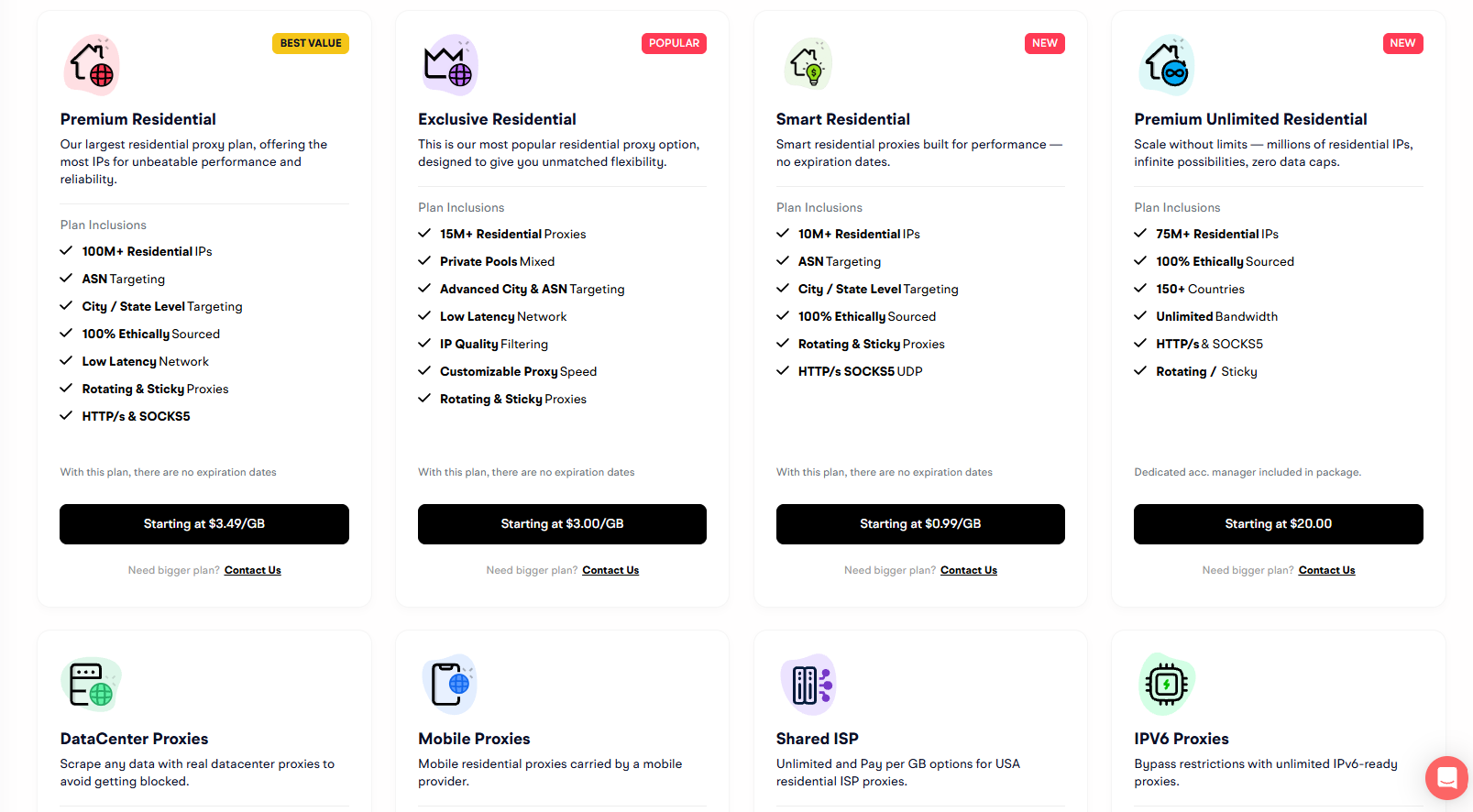
Once you've selected the required proxy type and completed the purchase, it will become available in the generator. Then choose the country, proxy type, format, and the number of proxies you need.
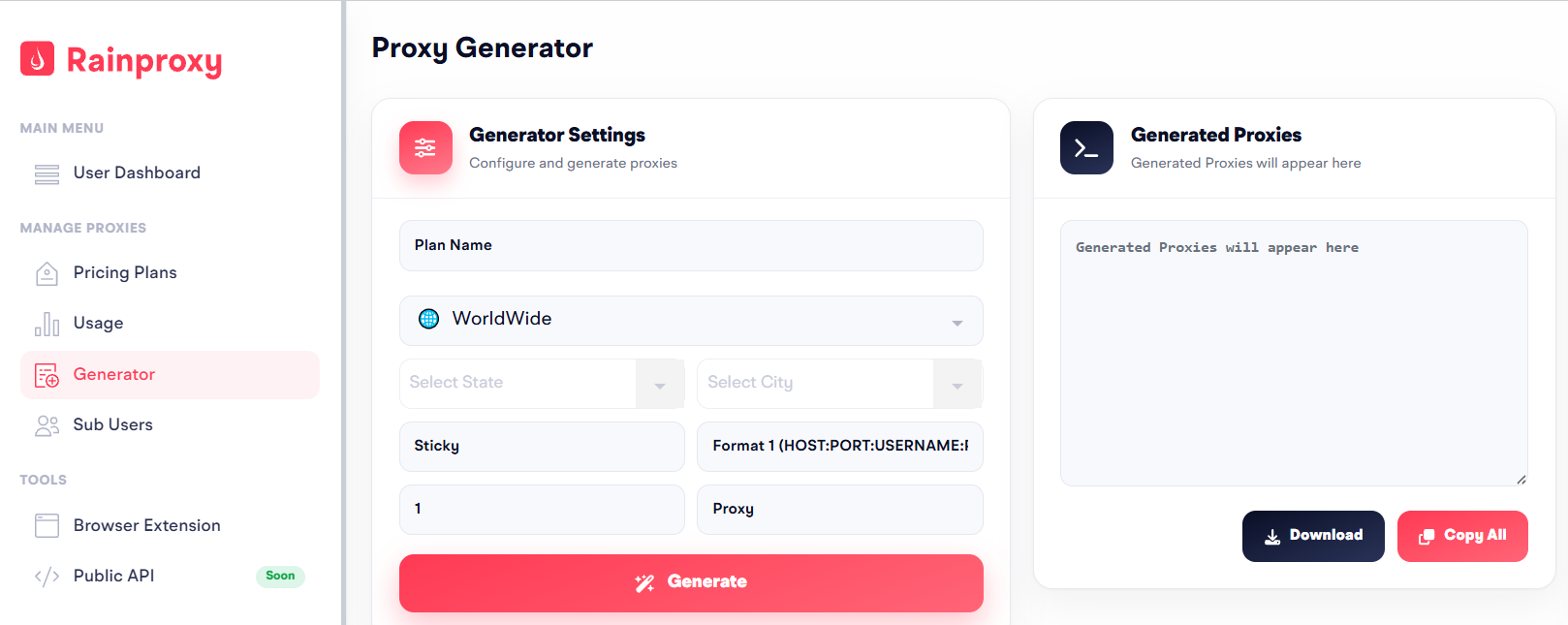
After generating your proxies, you can add them to Dolphin Anty in several different ways.
When creating a browser profile, select "New proxy" and paste the copied proxy details into the corresponding field. Make sure you select the correct proxy type: HTTP, SOCKS, or SSH. Dolphin Anty supports all proxy formats available in RainProxy.
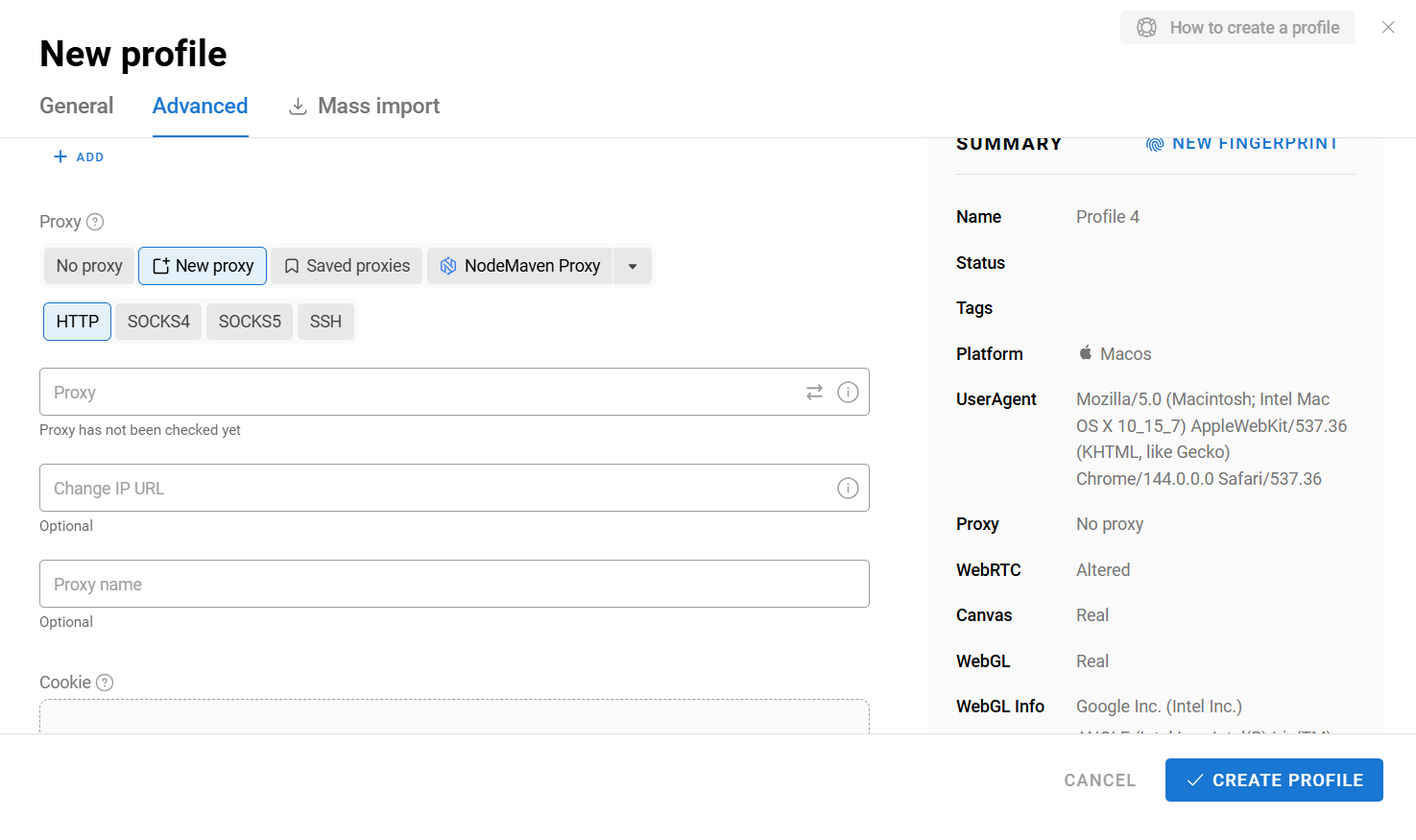
Then click "Create profile", and your browser profile will be ready with the selected proxies.
If you've generated multiple proxies, copy them and add them to the Proxies section in Dolphin Anty. Click "Add Proxy", then select "Mass Addition".
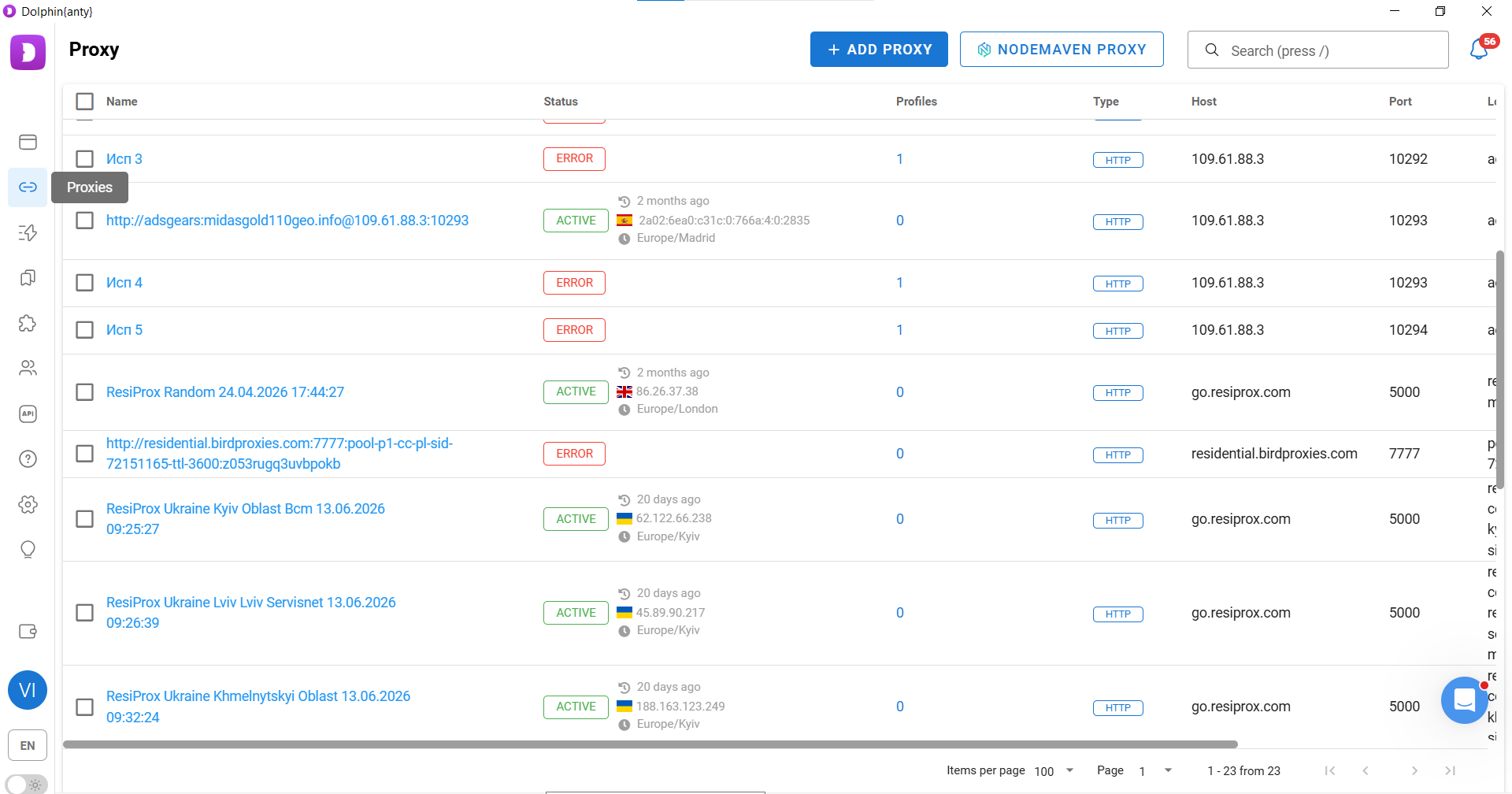
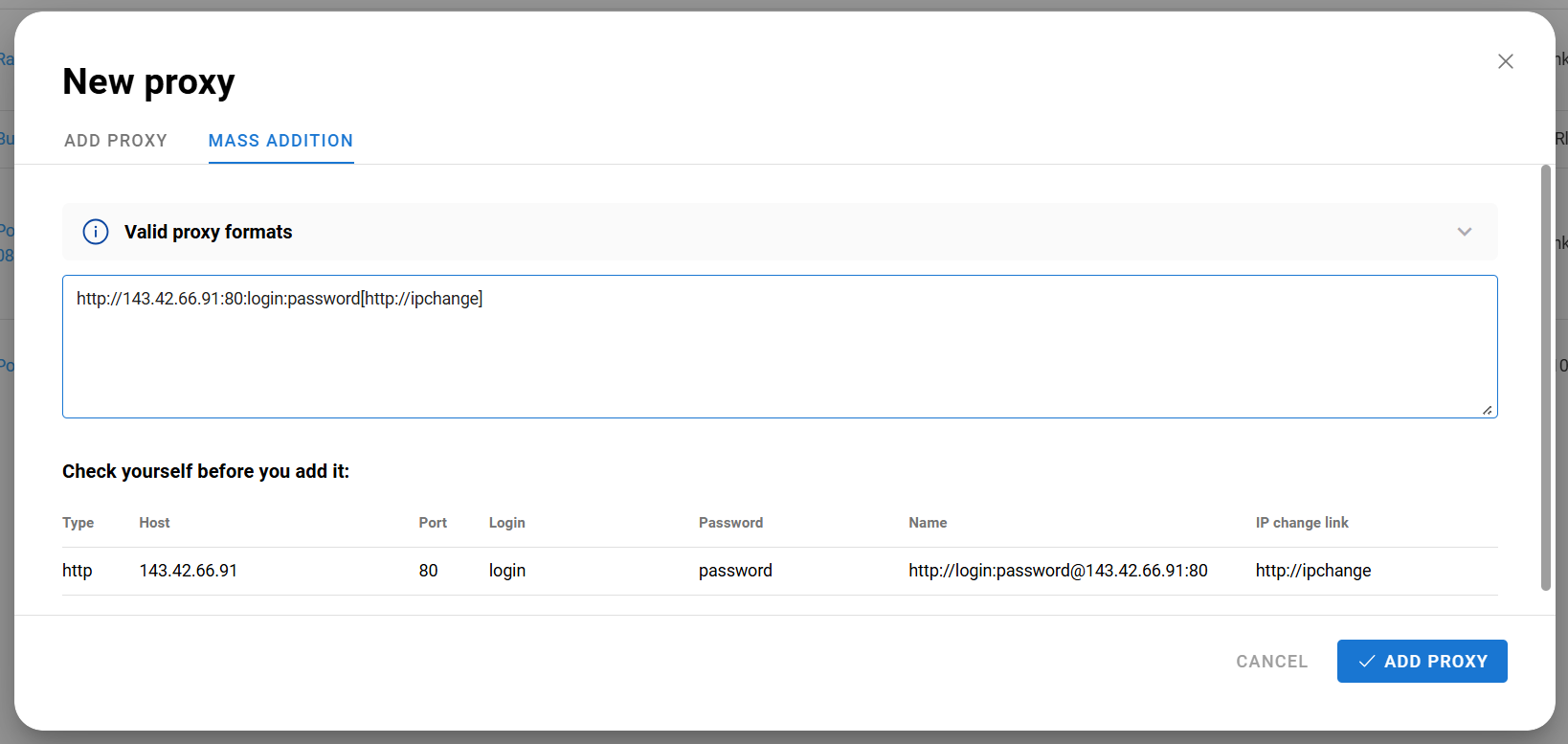
After importing the proxies, check that they are working correctly. Select the imported proxies, wait for the action panel to appear at the bottom of the screen, then click "Check proxy".
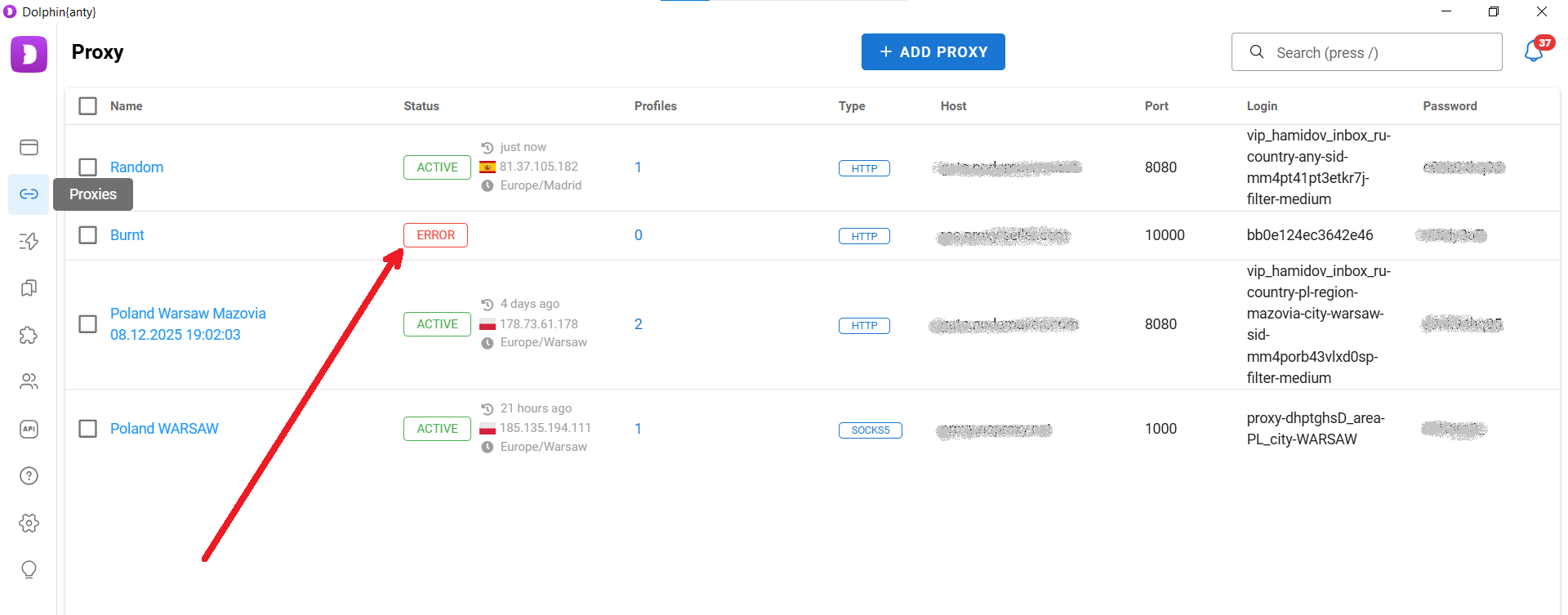
If the proxy is not working or you entered the parameters incorrectly, an error icon will appear next to the port.
Once your proxies have been imported, you can instantly assign them to browser profiles from the "Saved" section. Simply choose one of the saved proxies, and it will be added to the selected browser profile.
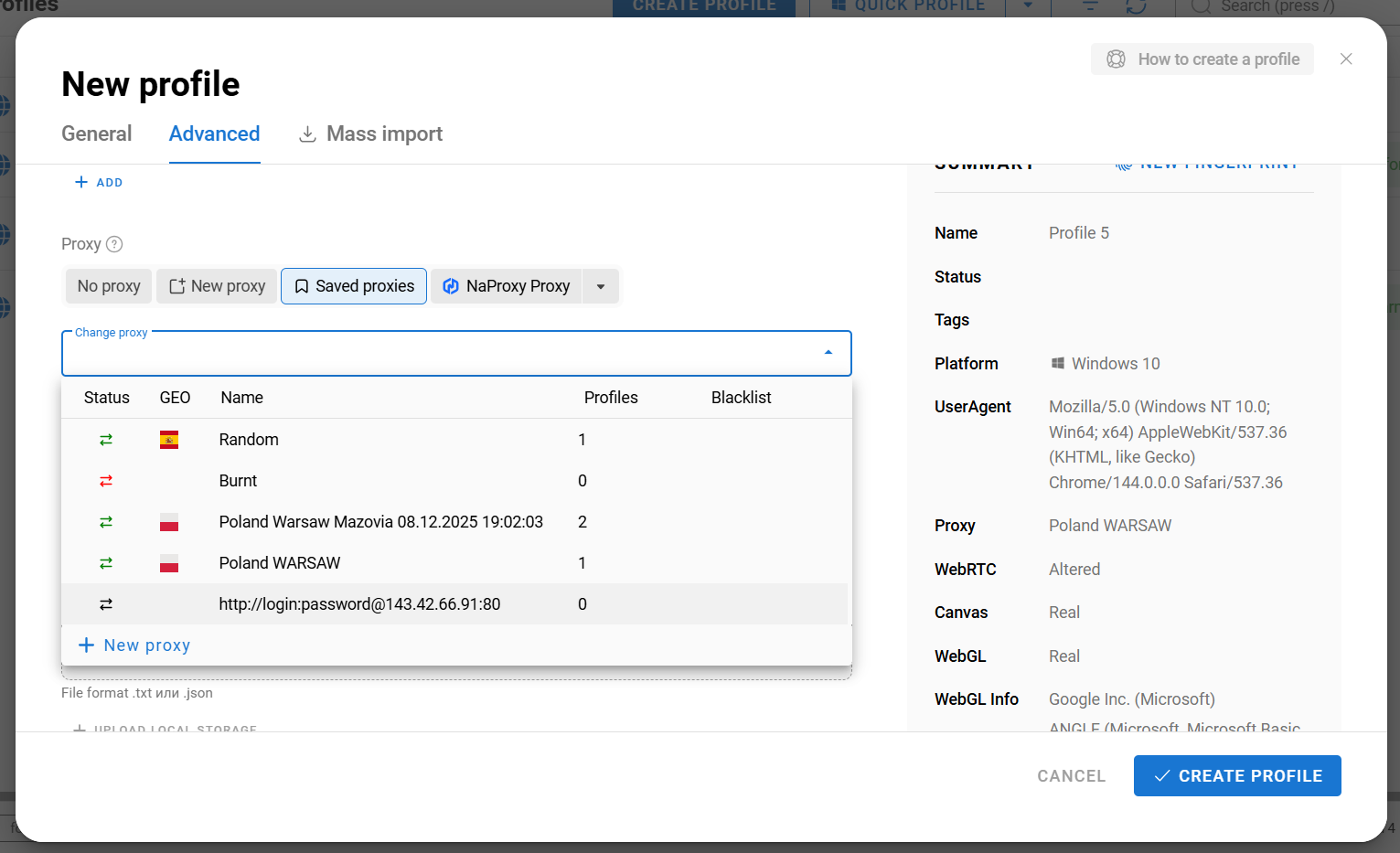
Important! Dolphin Anty includes a built-in proxy blacklist checker. If a proxy appears on known website blacklists, a warning icon will be displayed next to it.

Dolphin Anty also allows you to assign multiple proxies to multiple browser profiles at the same time. To do this, first create several browser profiles without proxies. Then select them and click "Change Proxy" from the action panel.
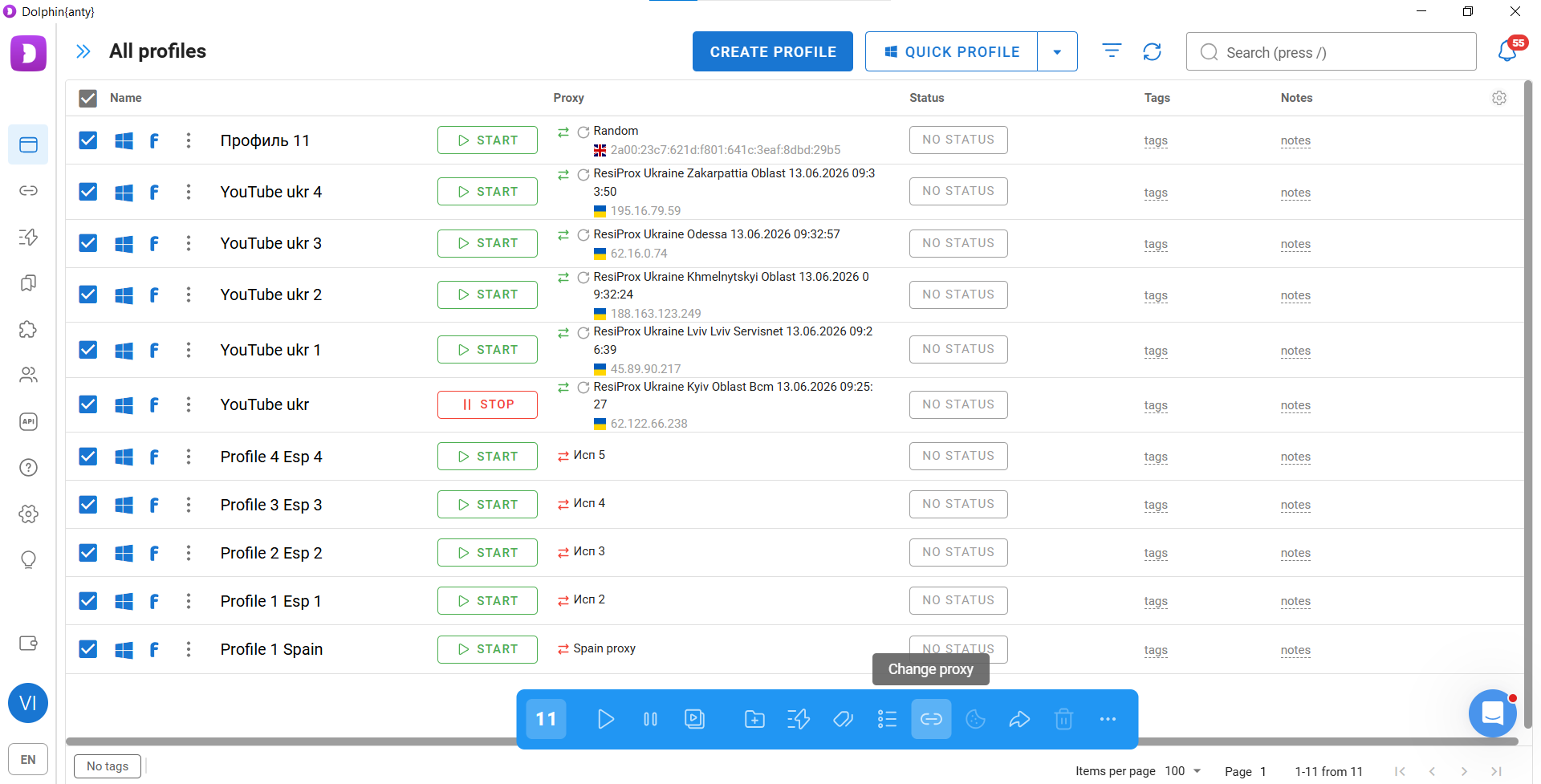
Next, either choose proxies from the Proxy Manager by clicking "Saved Proxies", or paste a new list of proxies by selecting "New proxy".
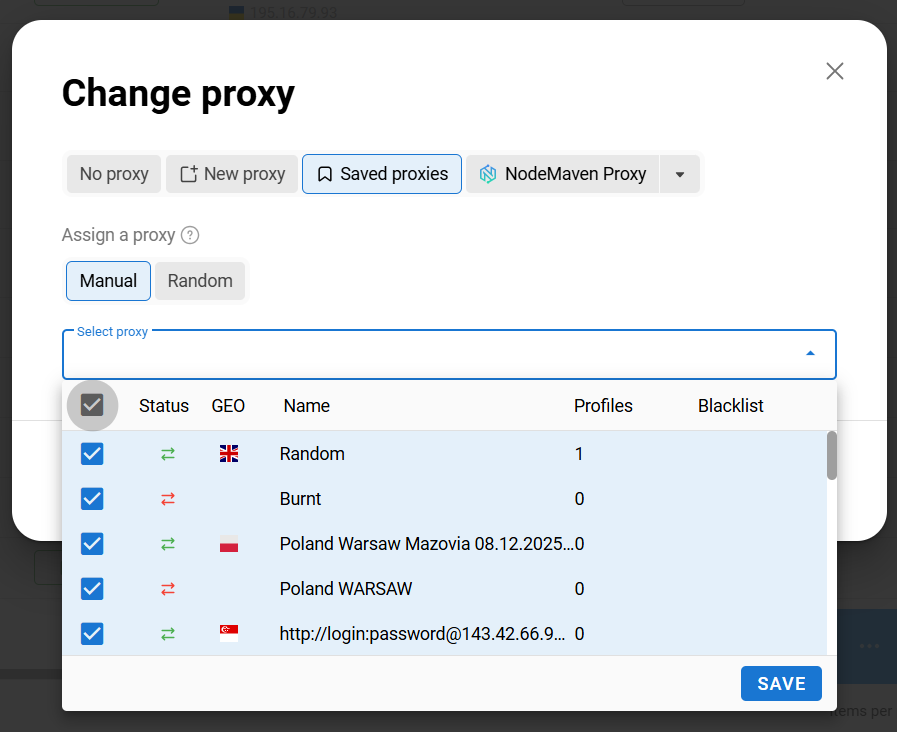
As a result, you'll have multiple browser profiles, each configured with its own proxy.
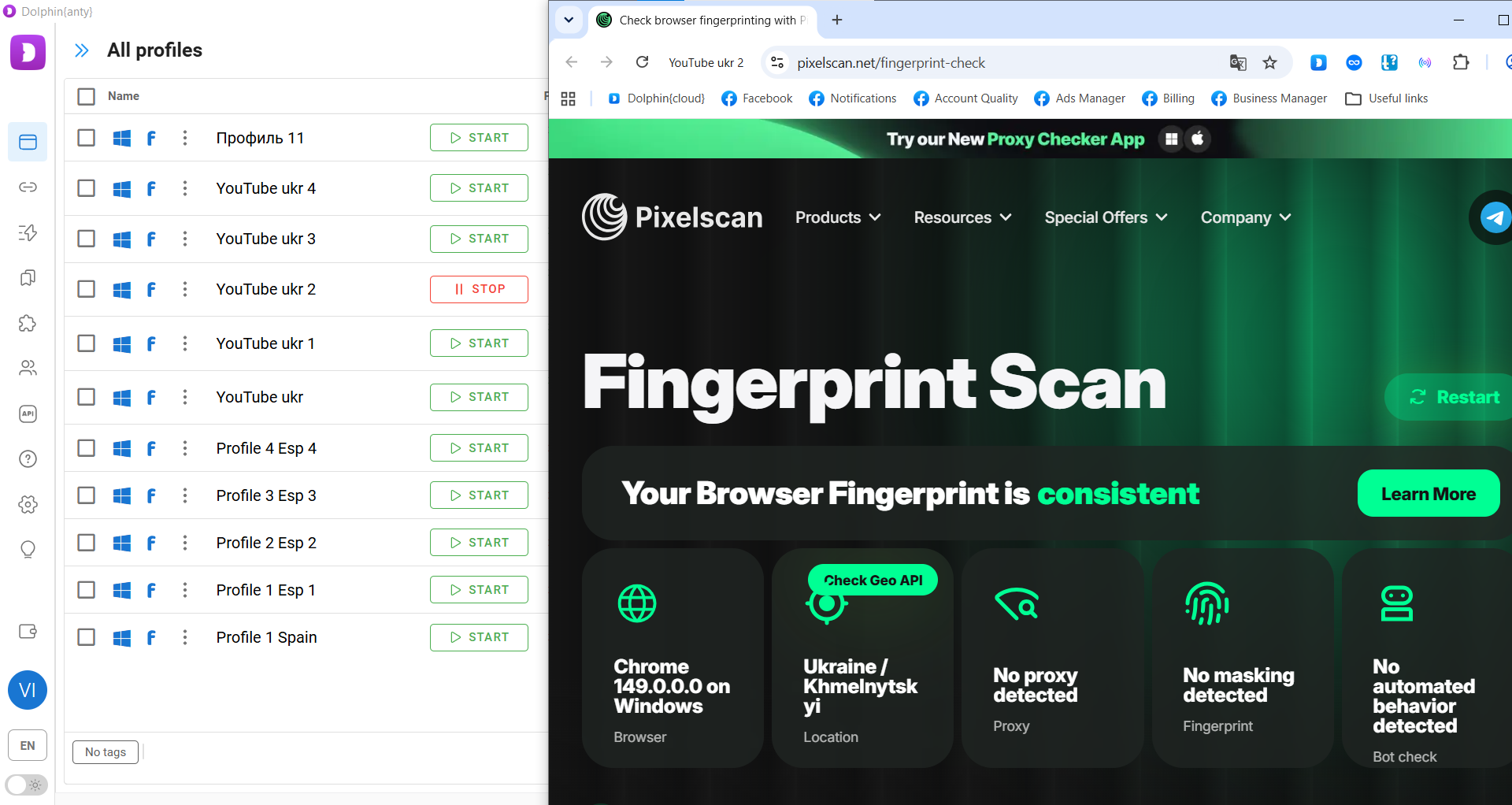
After creating a browser profile, you should verify the quality of its browser fingerprint. Launch the browser profile and open the Pixelscan checker. Then run the scan. If your browser fingerprint has been configured correctly, the result should look like the screenshot below.
If your browser fingerprint is poorly configured, the checker will display "Masking Detected".
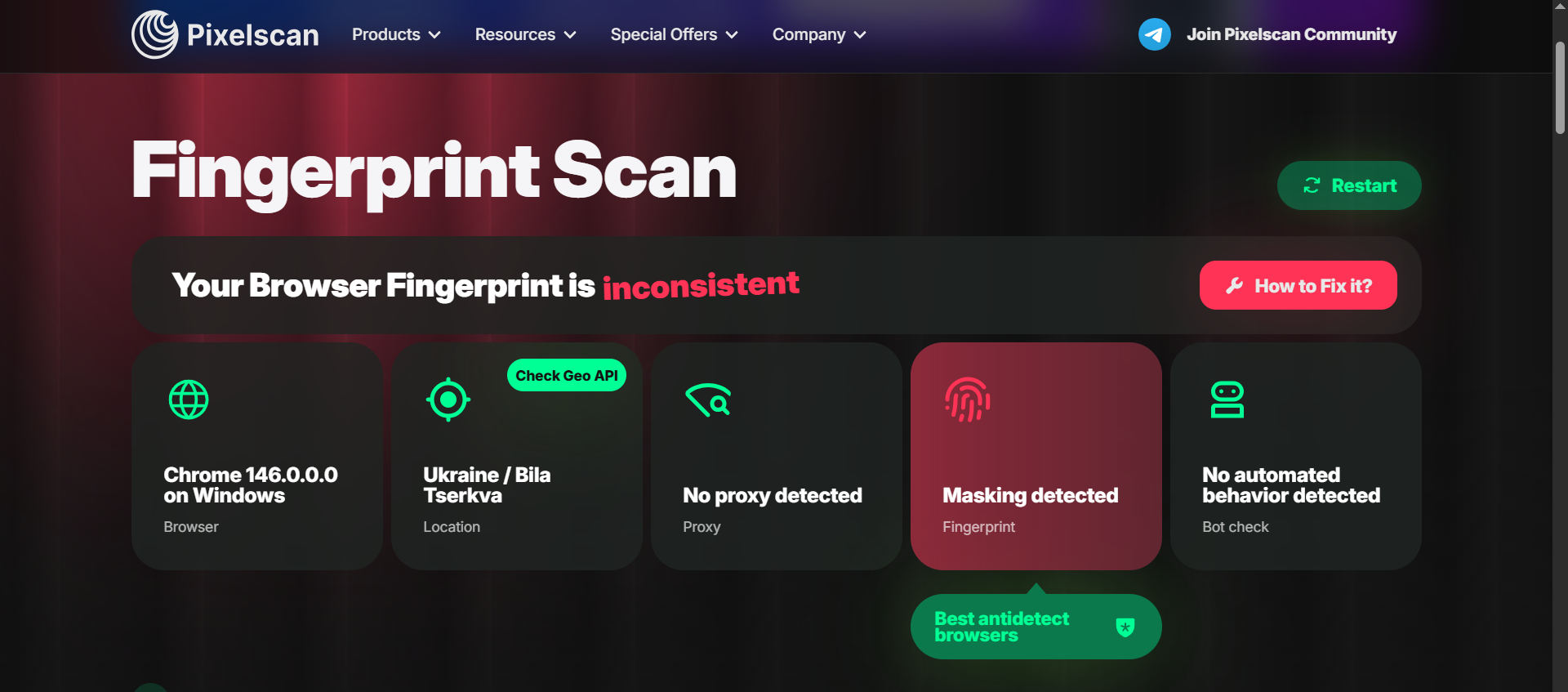
The most common reason is selecting the wrong operating system. If your computer runs Linux, choose Linux when creating the profile rather than another operating system. Dolphin Anty even displays a warning if you try to create a browser profile using a different operating system.
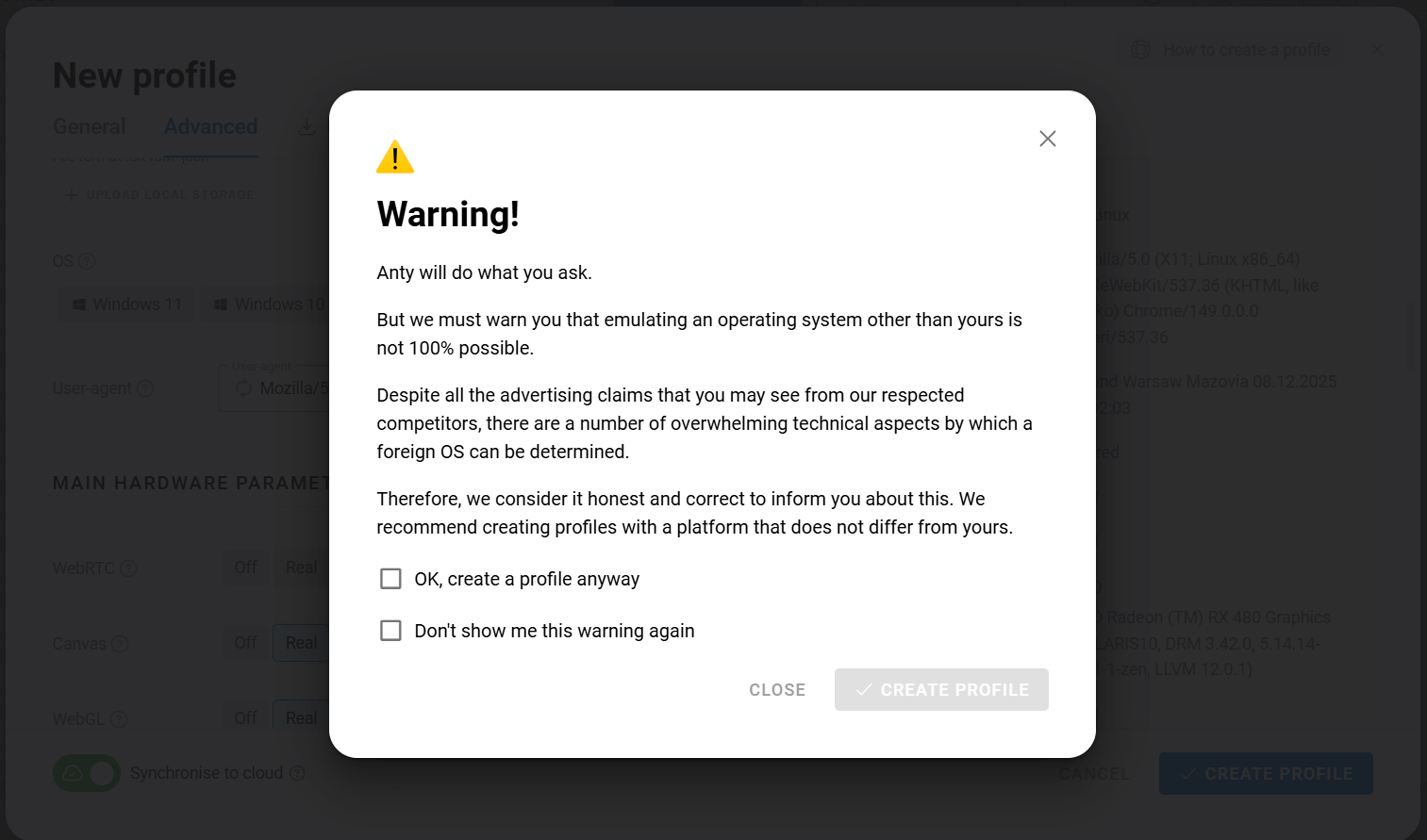
However, if you choose a different version of your operating system (for example, your computer runs Windows 11, but you emulate Windows 10), no warning will appear. Even so, the resulting browser fingerprint may still be of lower quality. For this reason, always select both your actual operating system and its actual version when creating browser profiles.
A browser fingerprint can also be configured incorrectly if you manually modify settings such as WebRTC or the number of CPU cores, or if you manually select the profile location instead of allowing it to be determined automatically based on the proxy. These situations are relatively uncommon — in most cases, the operating system selection is the cause.
Proxies and a properly configured browser fingerprint alone are not enough, because website anti-fraud systems also analyse your browser cookies. If your browser has no cookies, websites may treat you as a suspicious user, even if your proxy and browser fingerprint are configured correctly.
If you already have a cookie file, import it into the appropriate field while creating a new browser profile.
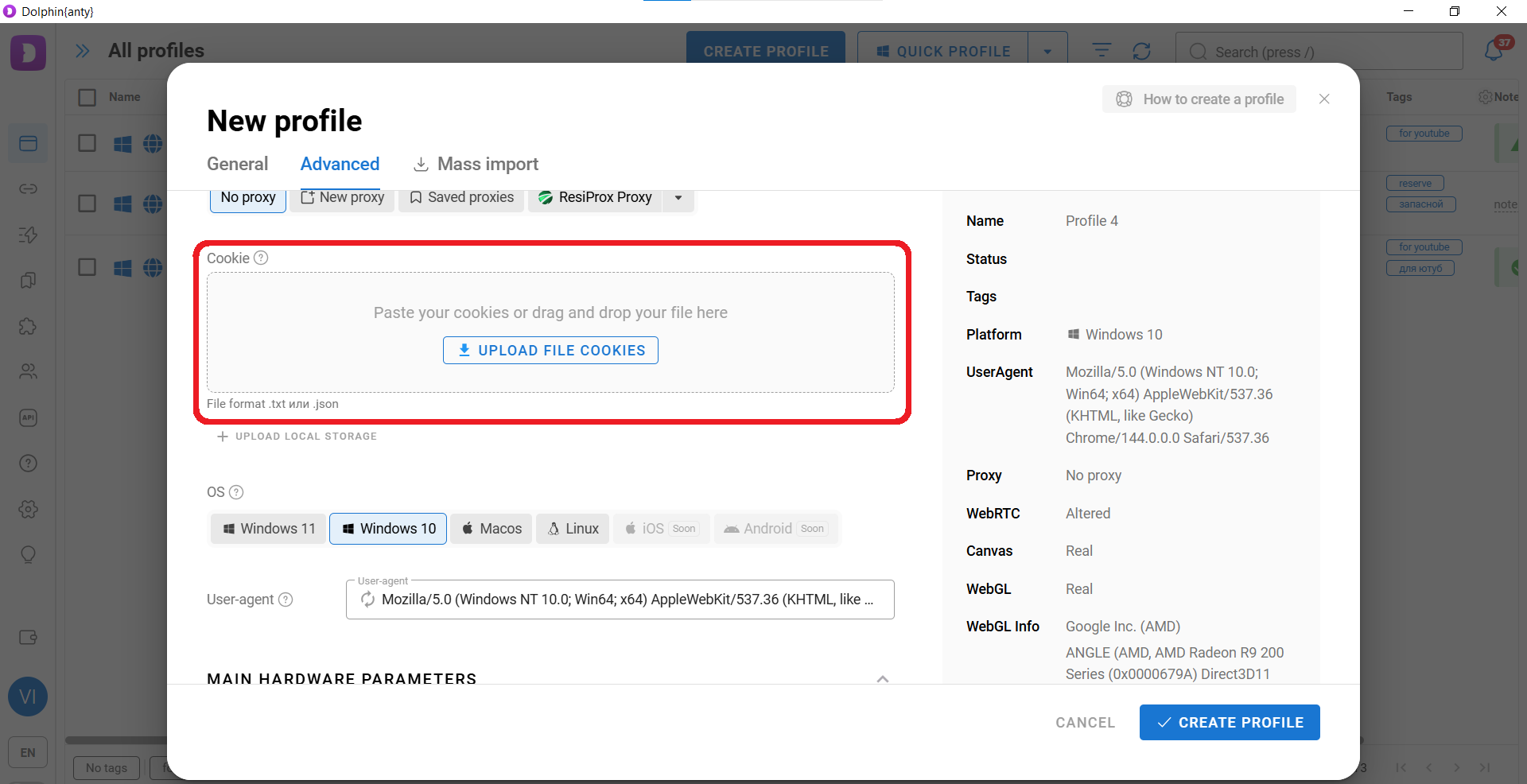
If you don't have cookies yet, you can easily build them using the built-in Cookie Robot. After creating a browser profile, hover over the three-dot menu and select this feature.
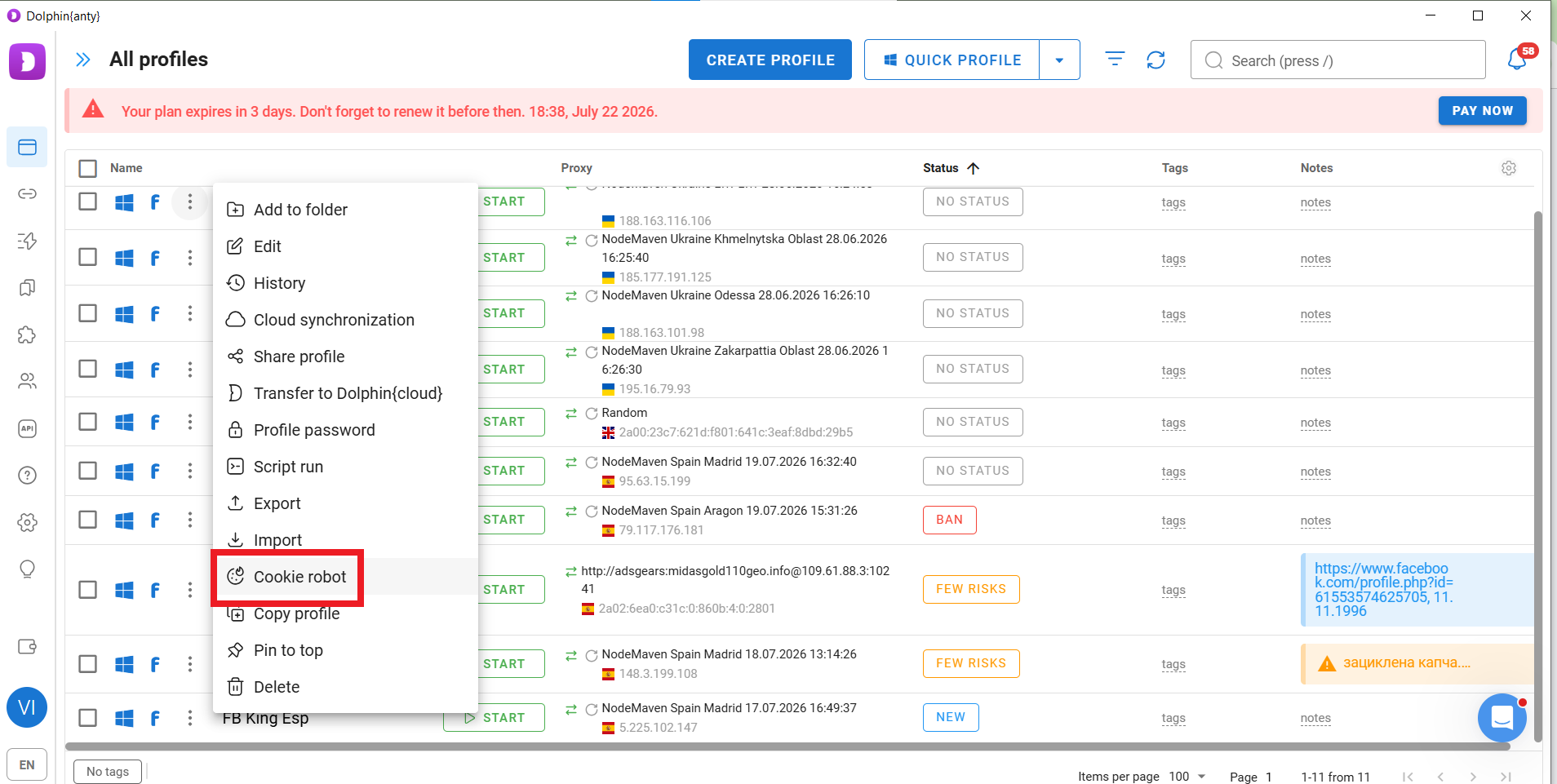
Clicking Cookie Robot opens a form where you can add a list of URLs. Paste your URLs and click "Start".
When collecting cookies, use regional websites that match the country of your proxy.
For everyday tasks, it's enough to know how to create and configure browser profiles, add proxies and cookies, and verify browser fingerprints. However, learning some of Dolphin Anty's additional features can significantly speed up your workflow.
These features help you quickly find the right browser profile and remember what each profile was created for.
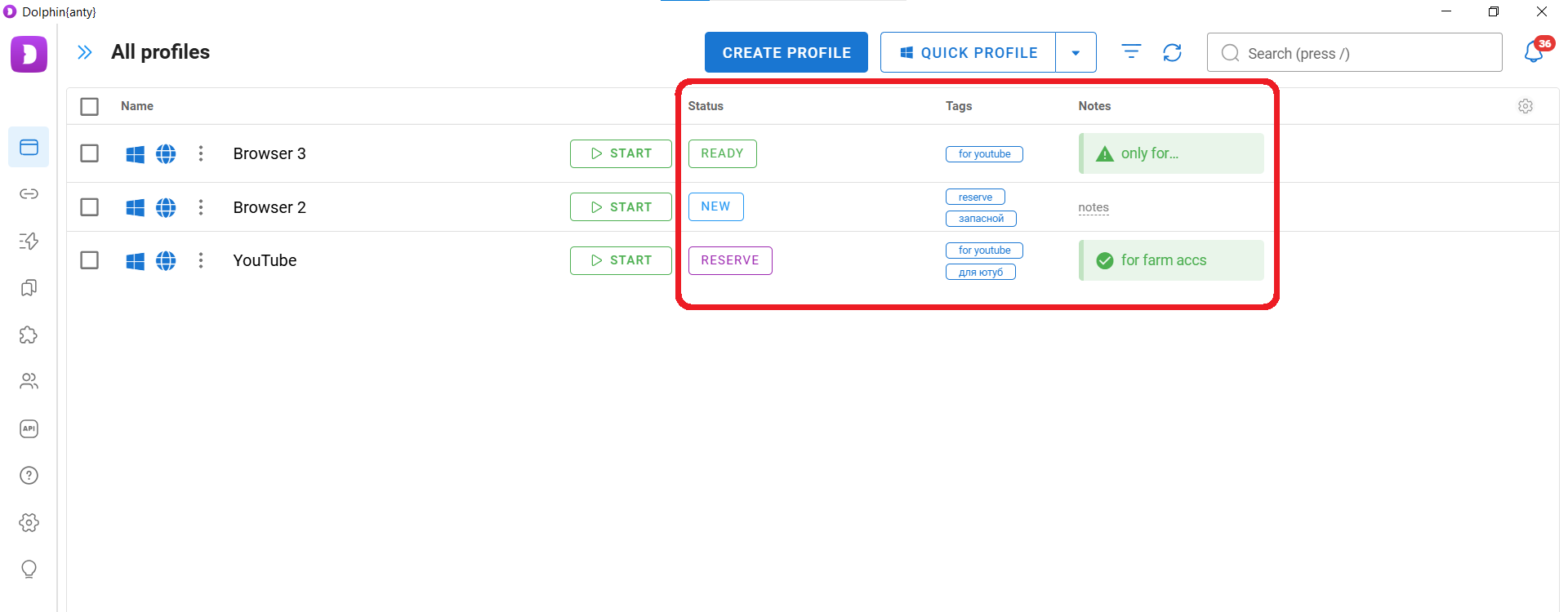
Tags are primarily used for filtering profiles. For example, if you assign the tag "for YouTube" to several browser profiles and then click that tag in the filter panel, only profiles with that tag will remain visible, while all others will be hidden.
Statuses are typically used to mark important information, such as whether an advertising account is active, while notes are useful for storing additional details required during your work. Together, tags, statuses, and notes make managing browser profiles much easier.
If you need multiple browser profiles with similar characteristics, you only need to create one profile and then duplicate it.
To do this, hover over the three-dot menu and click "Copy". A window will open where you can specify how many copies to create.
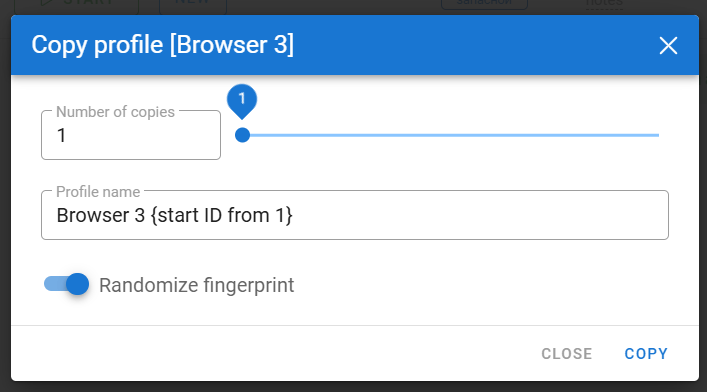
By default, the "Randomize fingerprint" option is enabled, so every copied browser profile receives its own unique browser fingerprint.
Scenarios help automate repetitive tasks and reduce the amount of manual work required. They become especially useful when managing dozens or hundreds of accounts.
They work as follows:
You create a scenario consisting of a sequence of routine actions.
Save the scenario.
Select the required browser profiles and run the scenario on them.
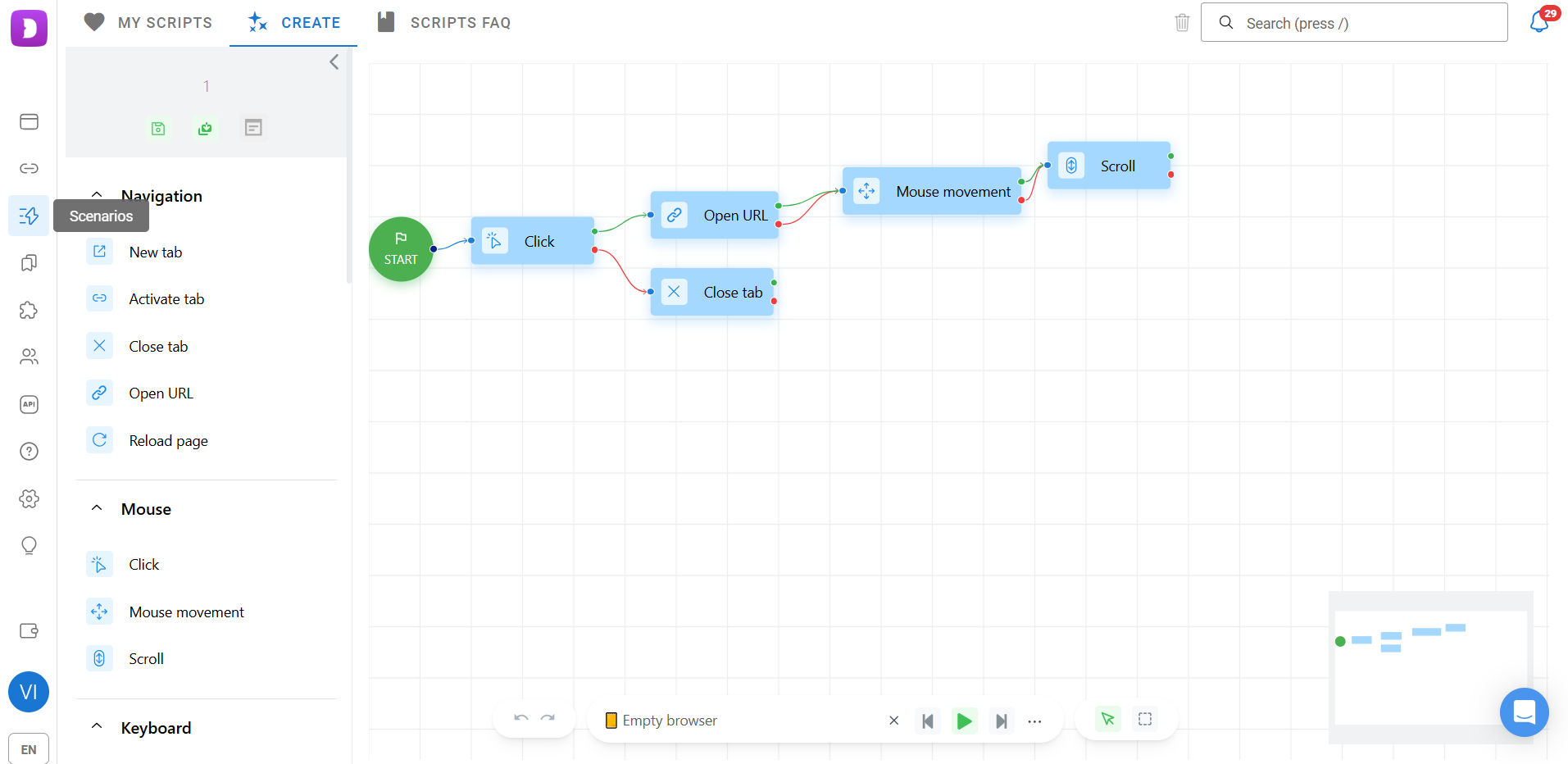
Scenarios can open websites, log into accounts, browse pages, click buttons, pause between actions, enter text into fields, and perform many other routine operations. This allows you to register accounts, prepare them for advertising campaigns, build browsing history and social activity, and complete many other repetitive tasks across any number of browser profiles simultaneously.
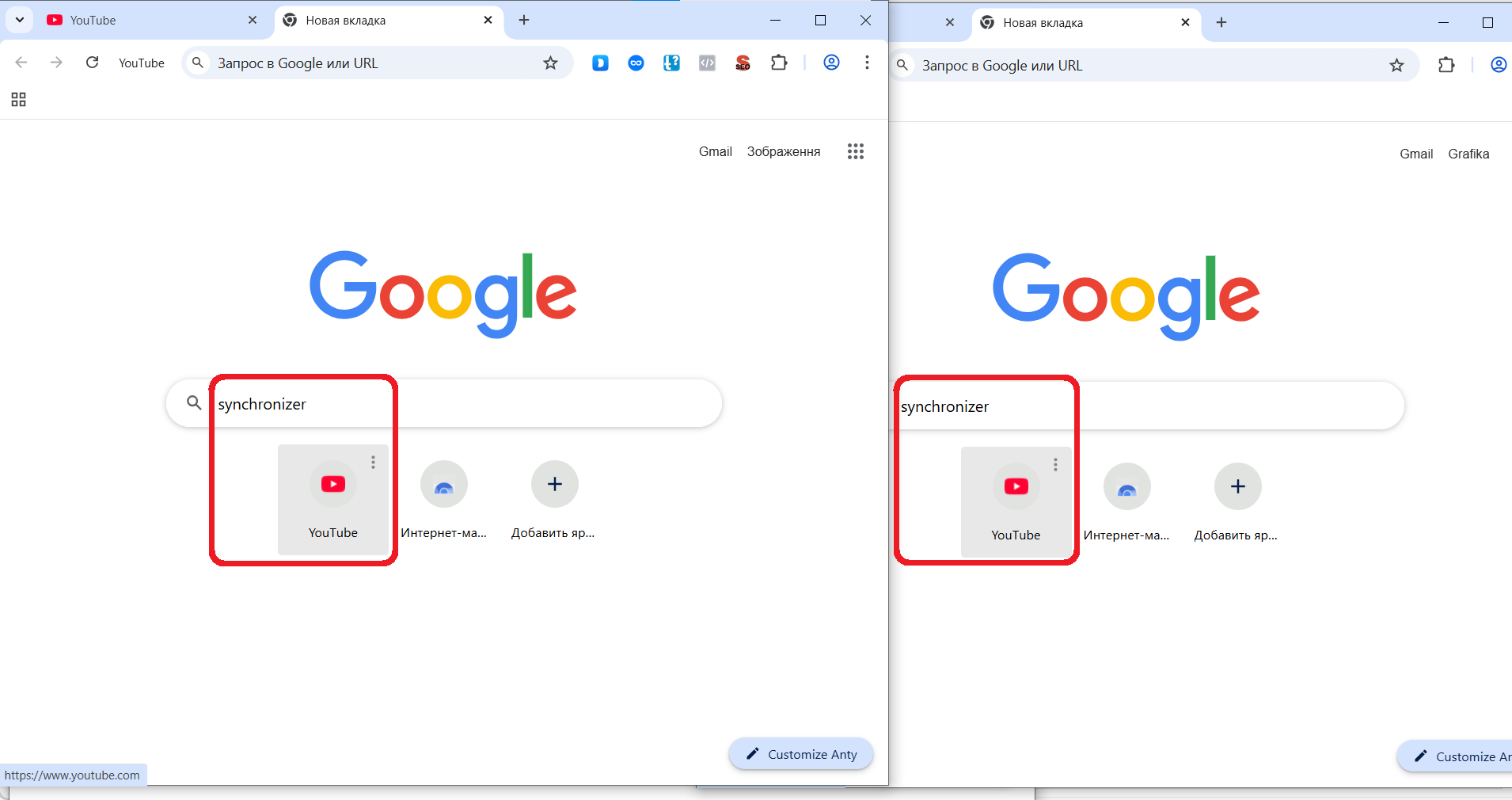
The Synchronizer allows you to mirror manual actions across multiple browser profiles at the same time. This makes it possible to scale tasks that cannot easily be automated.
It works as follows:
Select several browser profiles and launch them through the Synchronizer from the bottom panel.
Choose one browser profile as the master profile.
Perform actions in the master profile, and they will automatically be repeated in the remaining browser profiles.

You now know how to create browser profiles with a high-trust browser fingerprint using RainProxy together with Dolphin Anty, and you've also learned several techniques for scaling your work with an antidetect browser.
To try Dolphin Anty yourself, use the promo code RAIN20 and get a 20% discount on your first payment.
We'd also like to remind you that RainProxy offers a three-day free trial, allowing you to test the service before making a purchase.
Harness the power of Rainproxy x BitBrowser and get all the information you're looking for to get setup!
Find the power of a secure online presence. Explore why using a provider with clean IPs matters. Don't risk it! Stay safe. Trust the pros.
Bypass Captchas effortlessly using residential proxies. Enhance your online experience with secure and reliable solutions. Say goodbye to interruptions!
Stay anonymous and secure while browsing the web with our powerful proxy service. We’re the best in the field
Get Started