
Proxies With OS Targeting: Choose Windows, Android Or Linux Exits
What OS targeting on proxies is, when it matters, and how to pick Windows, Android or Linux exit IPs on Rainproxy Premium Residential with one username token.
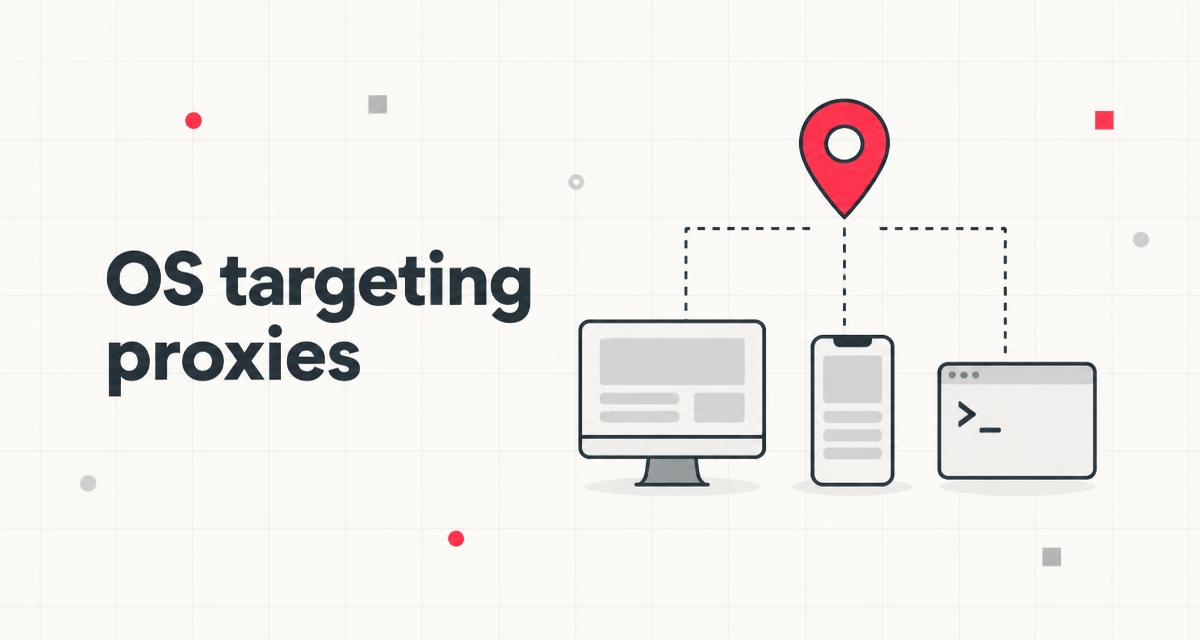
Most proxy targeting is about place: a country, a city, a postcode. OS targeting is about the device behind the IP. On Rainproxy you can ask for exit IPs that come from devices running Windows, Android or Linux. This guide explains what that means, when it is worth using, how to set it up and where its limits are.
What OS targeting on a proxy means
A residential proxy sends your request out through a real consumer connection. Each of those connections belongs to a device, and every device runs an operating system. OS targeting lets you filter the pool by that operating system, so the exits you receive come only from the kind of device you asked for.
Rainproxy supports three values:
- Windows — exits from PCs.
- Android — exits from phones and tablets.
- Linux — exits from Linux devices.
macOS and iOS are not offered. If you need those, OS targeting is not the right tool today.
When you need it
OS targeting is useful when the device type behind your traffic should match the rest of your setup. Typical cases:
- Checking mobile behaviour. You want to see how a site or app responds to visitors on Android, so you route through Android exits.
- Keeping desktop flows consistent. A browser automation that presents itself as a desktop browser runs through Windows exits so the network side tells the same story.
- Matching an automation profile. If your tooling uses a fixed device profile, OS targeting lets the exit match that profile instead of being random.
If none of this applies — for example you are fetching public pages where the device type does not matter — you can leave OS targeting off and keep the full pool to rotate through.
How to set it up at Rainproxy
There are two ways, and they produce the same result.
In the dashboard Generator. Open the Generator, choose Premium Residential and pick a value under Operating system. It is a Pro option. The Generator writes the matching username for you.
In the proxy username. Add one of these tokens to your username:
-os-windows-os-android-os-linux
A US Android exit looks like this:
user-country-US-os-android
The token works next to the other targeting parameters, so you keep one username format for everything.
Combining OS with location targeting
OS targeting combines with country, state, city, ZIP and ASN targeting. You can ask for Android exits in one US state, Windows exits behind one network, or Linux exits in one postcode area.
Keep in mind that each filter narrows the set of IPs that match. One filter on its own leaves a wide choice; OS plus city plus ASN leaves far fewer devices that fit all three. If you see less variety than you expect, remove the least important filter first.
Which product has it
OS targeting is available on Premium Residential only. It is not part of Exclusive Residential, Residential Smart, Mobile, ISP, Datacenter, IPv6 or Unlimited plans. If OS targeting is a must for your project, Premium Residential is the product to pick. See the Premium Residential product page for the full feature list and the OS targeting section on the features page for a short overview.
A worked example
Say you want to compare a sign-up page as seen from Android devices and from Windows PCs in the United States. Run two clients side by side:
- Client A uses
user-country-US-os-android. - Client B uses
user-country-US-os-windows.
Keep everything else equal: same page, same time, same headers strategy. Any difference you see between the two runs can then be traced to the device type rather than to location or timing. If you also need each client to keep one IP while it steps through the form, add a sticky session to both usernames, as described in our sticky session guide.
Common setup mistakes
- Mismatched client. Routing through Android exits while your script sends a desktop browser profile sends mixed signals. Decide on one device story and keep the exit and the client aligned.
- Wrong product. OS tokens only apply on Premium Residential. Adding
-os-androidto a username for another product does not give you OS targeting. - Too many filters at once. Start with country plus OS. Add state, city, ZIP or ASN only when your task needs them, and check that you still see enough variety.
- Typos in the token. Use the exact lowercase values
windows,androidandlinux, or copy the username from the Generator.
How to check it is working
Send a few requests through the proxy to an IP information page you trust and confirm the location matches what you asked for. Then compare your target's behaviour with and without the OS token over a small sample before you scale up. Measure on your own task rather than relying on general claims.
Honest limits
- Three systems only. Windows, Android and Linux. No macOS, no iOS.
- It describes the exit, not your client. OS targeting chooses which devices your traffic leaves from. Your own browser or script still sends its own headers and fingerprint, and it is up to you to keep those consistent.
- Narrower filters mean fewer IPs. Stacking OS with tight location filters reduces the number of exits that match.
- No promise about any specific site. Matching the device type is one signal among many. We do not promise results on any named website or app.
Getting started
Try it before you commit: the free trial includes 250 MB in total — 125 MB of Premium Residential and 125 MB of Exclusive Residential — claimed through live chat. Current plans are on the pricing page.
Spin up your first session in 60 seconds.
250 MB on us, activated by our team in live chat. No credit card. Real residential and mobile IPs across 195+ countries.