
Dolphin Anty Setup Guide: Using Rainproxy Proxies with Dolphin Anty
How to generate Rainproxy proxies and attach them to Dolphin Anty profiles — proxy types per task, bulk import, Cookie Robot, scenarios and the Synchronizer.
Dolphin Anty is an antidetect browser. It doesn't just swap your IP or user agent — it changes the whole browser fingerprint, so each profile looks like a different person on a different machine.
That's only half the job. A fingerprint arriving from the wrong network still looks wrong, which is where Rainproxy comes in. This guide covers both halves: picking the right proxy type for the task, generating it, and attaching it to Dolphin Anty profiles one at a time or in bulk.
The setup in 6 steps
- Create a profile — pick an OS and let Dolphin Anty build the fingerprint.
- Generate proxies — pick the right Rainproxy product for the task and copy the list.
- Attach the proxy — paste it into the profile, or import the whole batch with Mass Addition.
- Run the proxy check — flag anything dead or blacklisted before it touches a real account.
- Warm the profile — let Cookie Robot build a normal browsing history.
- Scale it — duplicate the profile and automate the routine work with Scenarios and the Synchronizer.
What an antidetect browser actually changes
A browser fingerprint is the set of signals a site reads to recognise you: canvas and WebGL output, fonts, screen and hardware values, timezone, language. Dolphin Anty gives every profile its own combination, so you can hold as many separate identities as you need.
That is why it gets used by:
- Affiliate marketers — running several ad accounts without one ban dragging the rest down.
- Marketplace sellers — managing multiple stores side by side.
- Crypto traders — spreading operations across accounts and regions.
- SEO and SMM specialists — checking search results, ads and recommendation feeds as a user in another country or on another device.
How profiles are built
Everything starts with a profile. When you create one you pick an operating system and set a proxy, and Dolphin Anty fills in the rest from there:
- The user agent and the core fingerprint values are matched to the OS you chose.
- The proxy sets the language, system time and reported location.
- The OS choice decides the CPU, GPU and other hardware values reported to sites.
One rule worth respecting: don't hand-edit the user agent or individual fingerprint fields unless you know exactly what you're doing. The default combination is internally consistent; a manual change usually breaks that consistency, and inconsistency is what detection looks for.
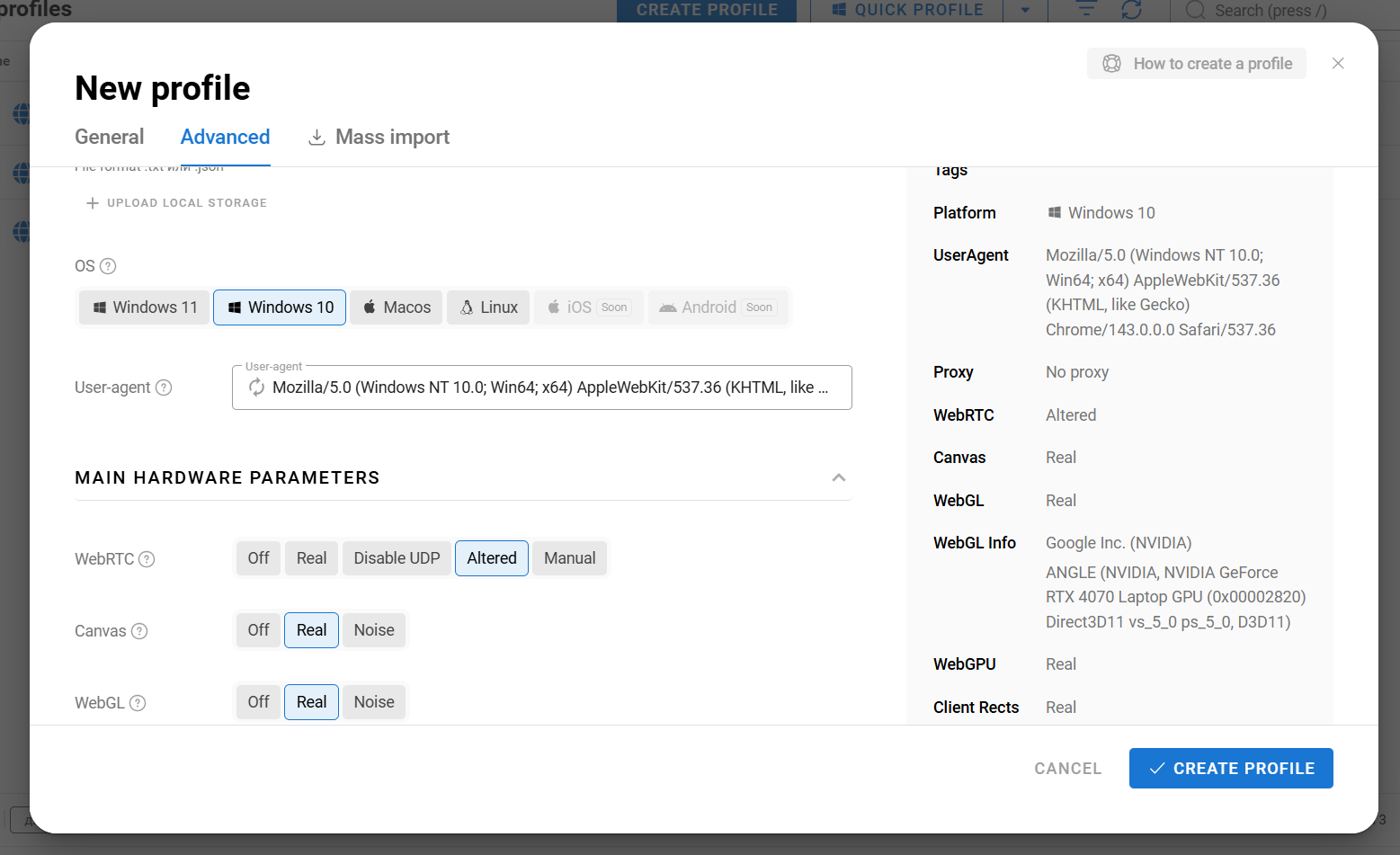 Creating a profile: pick the OS, and Dolphin Anty builds a matching fingerprint.
Profiles are effectively unlimited. Proxies are what make them usable — an antidetect browser does nothing to your IP address.
Choosing the right Rainproxy product
Generate your proxies first, in the Rainproxy dashboard's Generator section. Which product you want depends on the job:
- Shared / datacenter — regional restrictions, cheap bulk requests. See datacenter proxies.
- IPv6 — checking SERPs and recommendation feeds from different locations and devices.
- Residential and mobile — ad accounts and multi-accounting on platforms with strict anti-fraud. This is what most Dolphin Anty users need.
- ISP (static residential) — when a profile has to keep the same IP for weeks.
Once the plan is active, pick the country, protocol, output format and how many proxies you want, then copy the list.
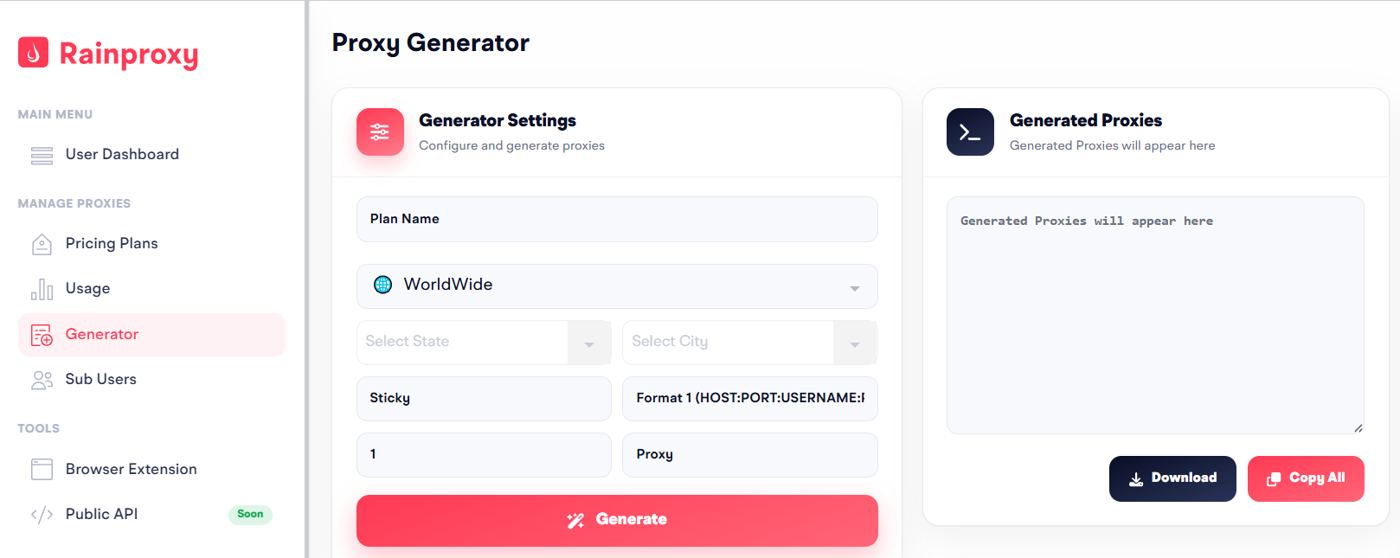 The Rainproxy generator: choose the country, session type and output format, then copy the list.
Adding proxies to Dolphin Anty
One profile at a time
While creating a browser profile, choose New proxy and paste the line you copied. Set the right type — HTTP, SOCKS or SSH. Every format Rainproxy outputs is supported. Click Create profile and the profile launches on that IP.
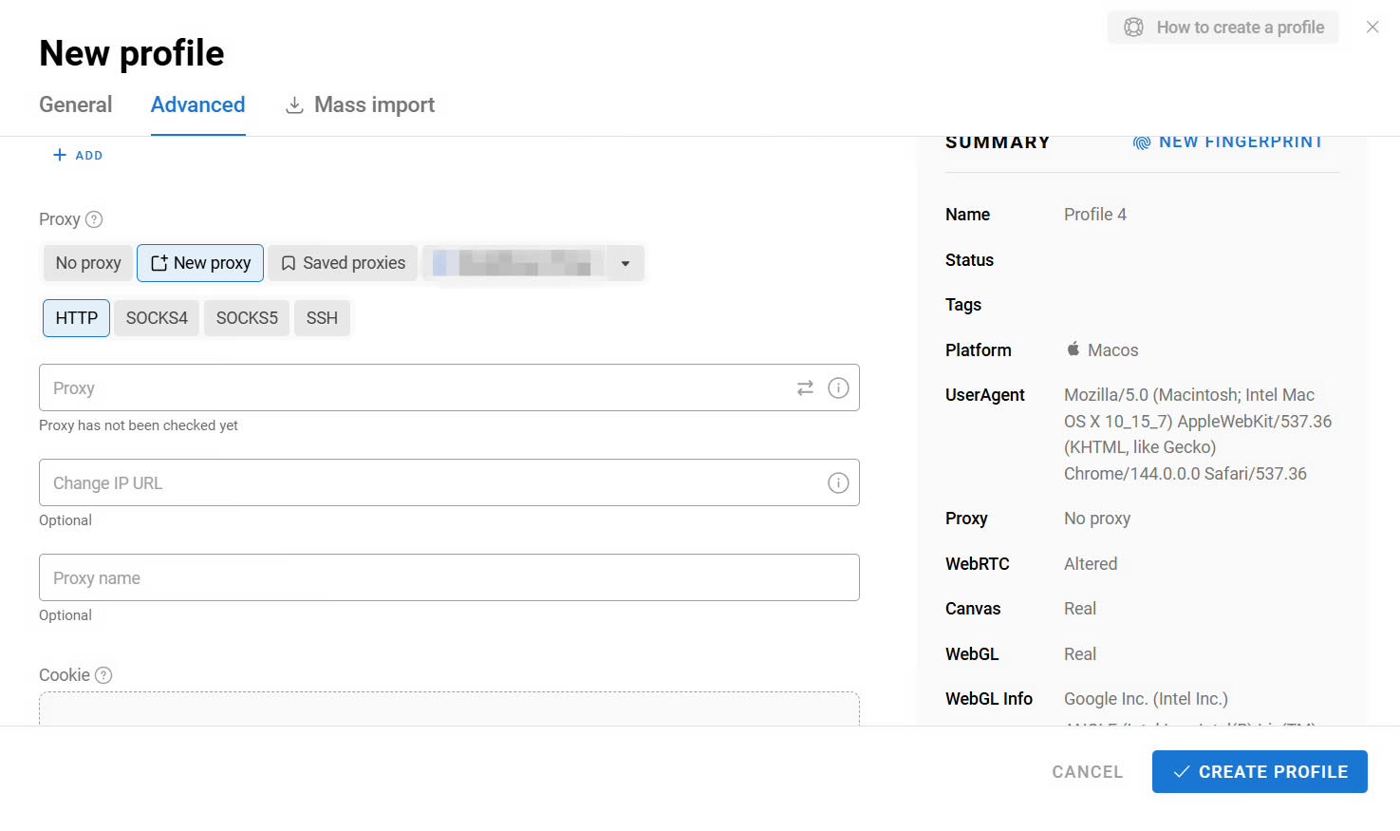 Paste the proxy into the profile's proxy field and pick the matching protocol.
In bulk
If you generated a batch, open the Proxies section, click Add Proxy, then Mass Addition, and paste the whole list.
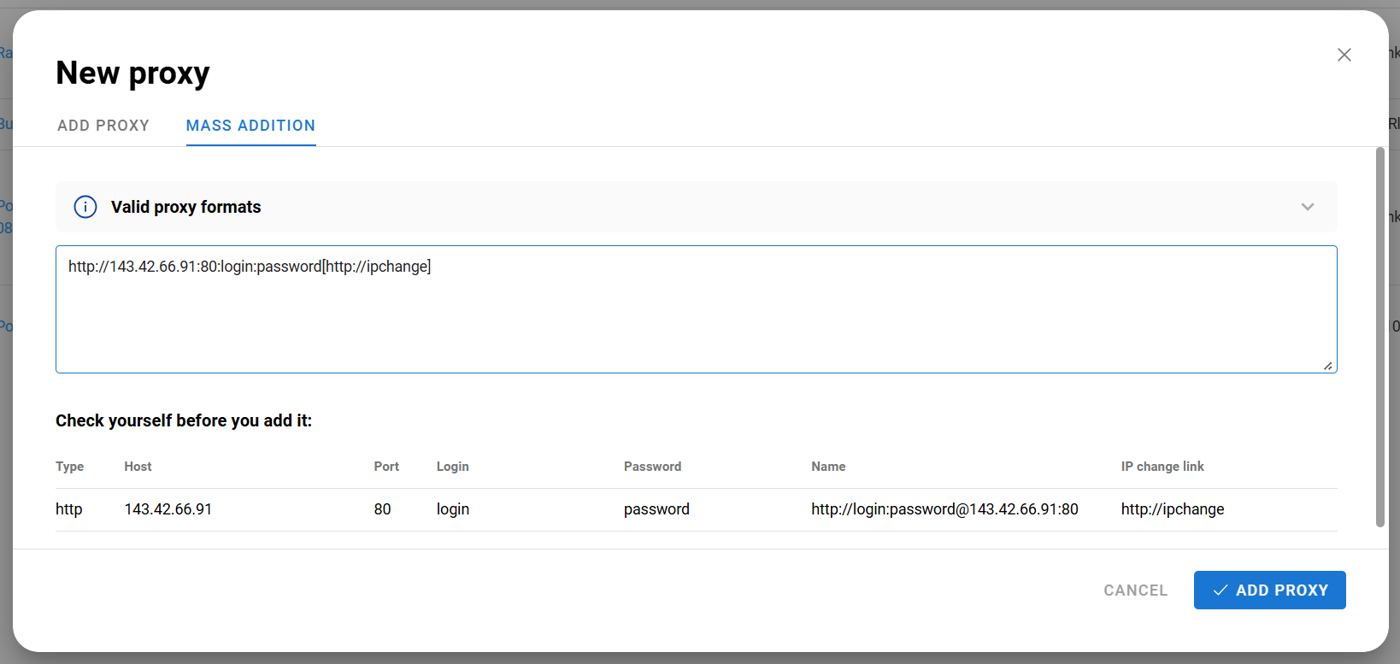 Mass Addition parses each line and shows you how it read the host, port and credentials.
After importing, select the proxies and hit Check proxy in the action bar at the bottom. Anything mistyped or dead gets an error icon next to the port. Working proxies land in Saved, and from there you can attach one to a new profile in a click.
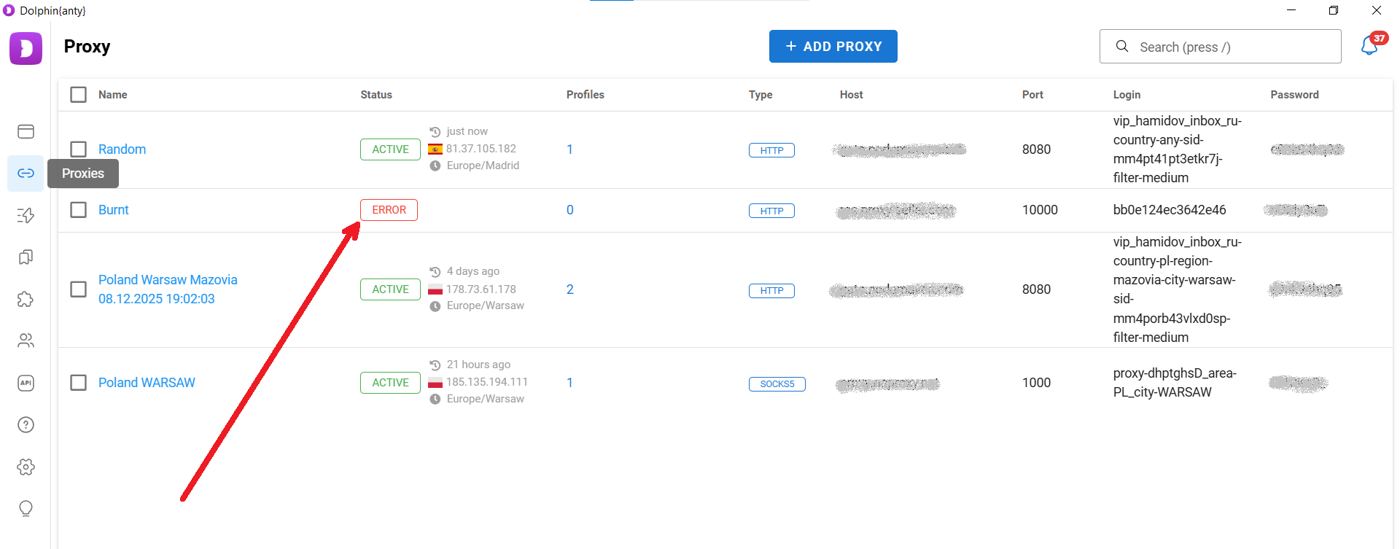 After the check, dead or mistyped proxies are flagged with an error status.
Dolphin Anty also runs its own blacklist check and flags any IP that shows up on known lists. If you're seeing those warnings regularly, that's a signal about the pool you're buying — see our note on clean, un-blacklisted IPs.
Warming profiles with Cookie Robot
A brand new profile with an empty cookie jar looks brand new. Cookie Robot fixes that: give it a list of URLs and it browses them for you, building a normal-looking history.
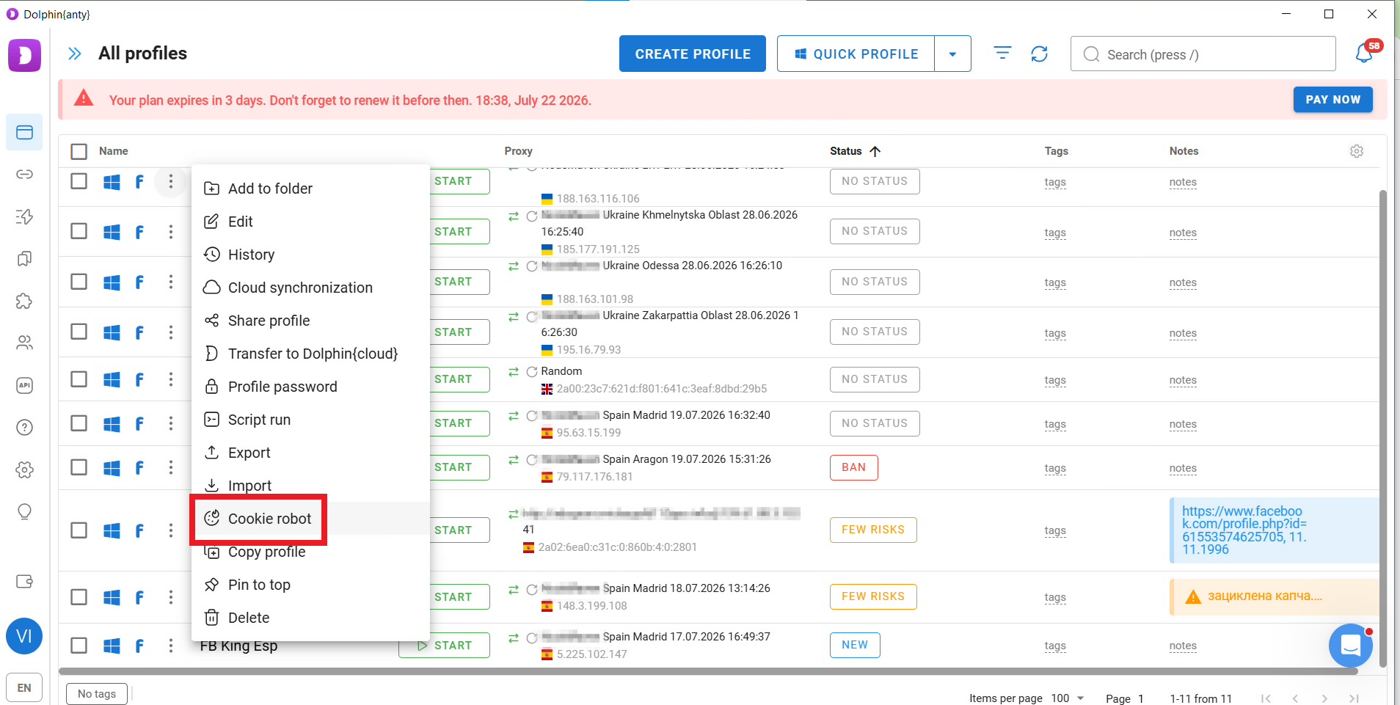 Cookie Robot sits in the profile's three-dot menu; feed it a list of regional URLs.
Use sites that match the proxy's country. A US IP with a browsing history of German news sites is a mismatch worth avoiding.
Features that save time at scale
- Tags, statuses and notes — tag a set of profiles "for YouTube" and filter to just those; use statuses for state (account live, banned, resting) and notes for the details you'll forget.
- Copying profiles — build one profile, then duplicate it from the three-dot menu. Randomize fingerprint is on by default, so each copy still gets its own identity.
- Scenarios — record a sequence of actions (open a site, log in, browse, click, type, wait) and run it across any number of profiles. Good for registrations, warm-up and building activity history.
- Synchronizer — launch several profiles together, act in the master profile, and every other profile mirrors it. For work you can't script.
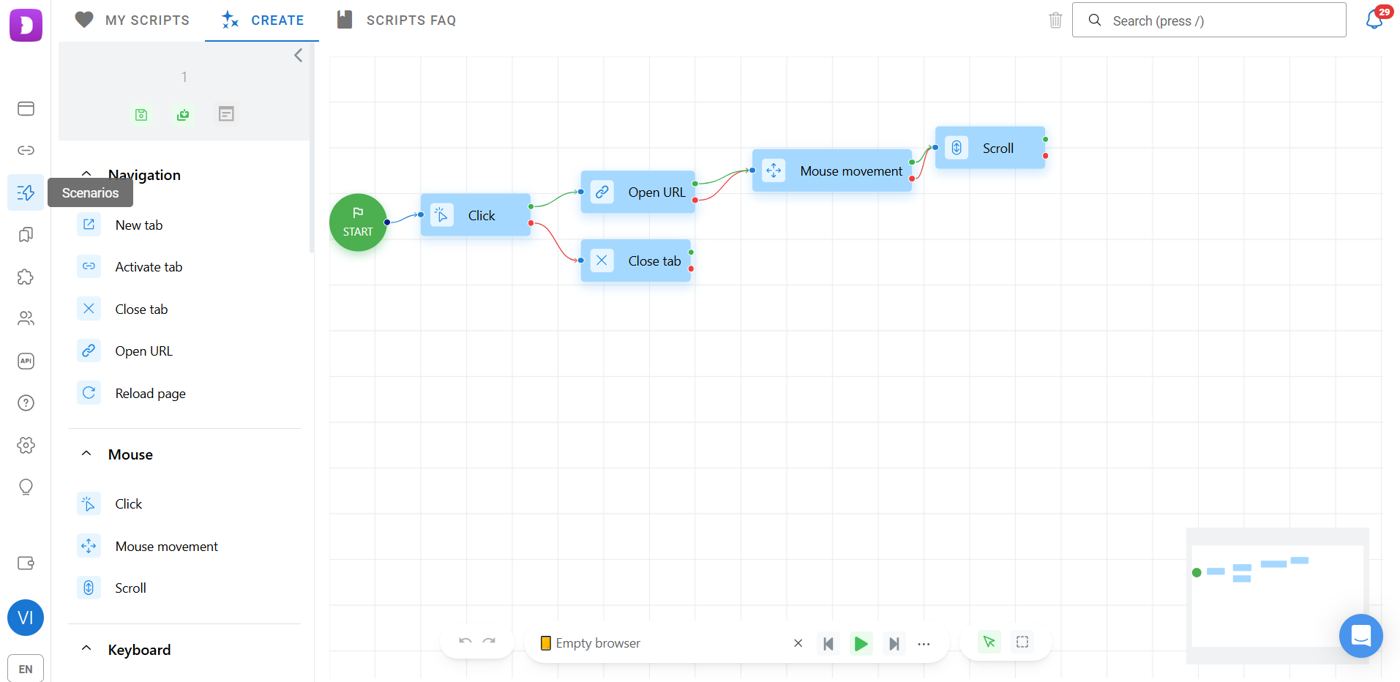 Scenarios chain actions — open a URL, click, scroll, wait — and replay them across profiles.
Getting started
Set up one profile end to end before you build fifty: generate a proxy, create the profile, check the IP and country, run Cookie Robot on a few regional sites, then copy it.
Dolphin Anty gives Rainproxy users 20% off the first payment with the code RAIN20. On our side, sign up with Google and you get 250 MB free to test the pool before you pay for anything.
Already using a different antidetect browser? We have the same walkthrough for BitBrowser.
Spin up your first session in 60 seconds.
250 MB on us, activated by our team in live chat. No credit card. Real residential and mobile IPs across 195+ countries.